

How to Schedule YouTube Shorts (Desktop, Phone, Tools)
Yes, you can schedule YouTube Shorts. YouTube's own scheduler is free, and it works the same way for Shorts as for normal videos: upload the file, open Schedule on the Visibility step, and pick a date, time and time zone. This guide shows how to schedule YouTube Shorts in YouTube Studio on a computer, in the YouTube app on your phone, and with a third-party tool. It also covers the limits YouTube does and does not publish.
Every rule here comes from YouTube Help and the YouTube Data API docs, checked on 24 September 2026. Where popular guides say something YouTube does not, you will see both.
#Quick answer
- Can you schedule YouTube Shorts? Yes. Shorts use the same scheduler as every other upload (YouTube Help).
- Where? YouTube Studio in a desktop browser, the YouTube app, or the YouTube Studio app. Desktop is the route YouTube documents step by step.
- How far ahead? YouTube does not publish a limit. Some guides say one year. The date picker is the final word.
- Time zone? You choose it in the scheduler. The "Published on" date under the video uses Pacific Time.
- Can you edit a scheduled Short? Yes. Change the details any time. To change the time, keep it Private and pick a new slot.
- Premieres? Not for Shorts. YouTube's Premieres page says Shorts are not supported (YouTube Help).
- Many at once? Studio takes up to 15 files in one upload. You schedule each one from its draft.
- Third-party tools? They use the YouTube Data API. Some set a publish time on YouTube, others upload at the scheduled time. Both work.
#The four ways to schedule a Short
Here is the full map before the steps. Each route has its own strengths.
| Route | Where you find it | Batch upload | Cost | Best for |
|---|---|---|---|---|
| YouTube Studio (desktop) | studio.youtube.com → Create → Upload videos | Up to 15 files | Free | Weekly batches, custom thumbnails |
| YouTube app (phone) | Create (+) → Upload a video, or record a Short | One at a time | Free | Shorts made with the in-app editor and sounds |
| YouTube Studio app | Separate app on iOS and Android | One at a time | Free | Changing a scheduled time on the go |
| Third-party scheduler | Tools that use the YouTube Data API | Depends on the tool | Free to paid | The same clip on YouTube, LinkedIn, TikTok and more |
A quick note on words. YouTube calls a scheduled video Scheduled in your Content list, and it is private until its time. A Premiere is different: a public watch page with a countdown and live chat. Premieres are for long-form videos only. More on that below.
#How to schedule YouTube Shorts in YouTube Studio (desktop)
This is the route YouTube's help page describes in full (YouTube Help: Schedule video publish time). It works in Chrome, Edge, Safari and Firefox on Windows, Mac and Chromebook.
- Sign in to YouTube Studio. Go to studio.youtube.com. If you manage more than one channel, check the channel name in the top-right corner.
- Click Create → Upload videos. Shorts and long videos use the same button. There is no separate Shorts option on a computer.
- Select your file. It must be square or vertical and 3 minutes or less to become a Short (YouTube Help). Export at 1080 × 1920 for the best fit. The full spec is in our YouTube Shorts dimensions guide, and the length rules are in YouTube Shorts length. If the same file also goes to TikTok, check the TikTok video size and safe zone before you export, because TikTok's buttons cover more of the bottom.
- Fill in Details. Add the title (up to 100 characters), description, and answer "Is this video made for kids?". The upload runs while you type.
- Click Next through Video elements and Checks. Checks scans for copyright claims. Fix any problem now, while the Short is still private.
- On the Visibility step, click the Schedule card. Set the date, time and time zone you want the Short to go public.
- Click Schedule. The Short now sits in Content → Shorts as Scheduled. It stays private until the time you picked.
If you close the window before step 7, nothing is lost. YouTube keeps the upload as a private draft in Content, and you can finish it later (YouTube Help). For the upload part in more detail, including thumbnails and music, see how to upload YouTube Shorts from PC.
Prefer to watch? The top video result in Google for this search is GSD Solutions' "How to schedule YouTube Shorts on Desktop and Phone" (February 2024). Button labels have moved a little since then, but the flow is the same.
#What YouTube asks before it lets you schedule
A few fields must be set before the Schedule button works:
| Field | Required? | Why it matters for a scheduled Short |
|---|---|---|
| Title | Yes | Up to 100 characters. Front-load the words people search. |
| Made for kids | Yes | A legal requirement. It also turns off comments and some features when set to Yes. |
| Checks | Runs on its own | A copyright claim found now can still block or limit the Short at publish time |
| Thumbnail | Optional | Custom Shorts thumbnails are desktop-only and need a verified account (YouTube Help) |
| #Shorts hashtag | Optional | YouTube decides by shape and length, not by the hashtag |
#Can you schedule YouTube Shorts on mobile?
Yes. YouTube's scheduling page lists "the YouTube app" as an option next to YouTube Studio (YouTube Help). But the page only gives the desktop steps, and it shows the same text for Android and iPhone. YouTube's mobile Shorts upload page lists the title and privacy on the details screen but does not mention scheduling at all (YouTube Help).
So the mobile steps below come from current third-party guides that match each other: Sprout Social (January 2026) and Hollyland. Labels can differ by app version and region.
In the YouTube app (Android or iPhone):
- Tap Create (+) at the bottom of the screen.
- Tap Upload a video to pick a clip from your gallery, or record a Short with the camera.
- Trim, add sound or text if you want, then tap Next.
- On Add details, write the title and set the audience (made for kids or not).
- Tap Visibility, then choose Schedule. Pick the date and time.
- Tap the back arrow to return to Add details.
- Tap Upload Short. The button may read Schedule once a time is set.
In the YouTube Studio app: YouTube's help page describes uploading from the Studio app with a title, privacy and monetisation settings, but does not describe scheduling there (YouTube Help). The Studio app is useful for the next step: changing a Short that is already scheduled. Open Content, tap the Short, and edit its visibility.
If you don't see Schedule on your phone: update the YouTube app first. If it is still missing, upload the Short as Private, then schedule it from YouTube Studio on a computer. Nothing about the Short changes.
#Desktop vs phone: which one to use
| YouTube Studio (desktop) | YouTube app (phone) | |
|---|---|---|
| Scheduling steps documented by YouTube | Yes | Only "or use the YouTube app" |
| Upload several Shorts at once | Up to 15 | One at a time |
| Custom Shorts thumbnail | Yes, verified accounts | No |
| Licensed songs from the Shorts sound library | No, mix music into the file | Yes |
| In-app effects, green screen, remix | No | Yes |
| Best for | A week of finished Shorts | A Short you made in the app today |
#Time zones: the setting that trips people up
The YouTube scheduler asks for a time zone next to the date and time. That is useful. It means you can schedule in your audience's time zone without doing sums. Pick the zone where most of your viewers live, and enter the time they are online.
One detail from YouTube Help:
- The "Published on" date uses Pacific Time. "When you make a video public on YouTube, the date on the watch page is based on Pacific Standard Time (PST)" (YouTube Help). If you are ahead of Pacific Time, a Short scheduled for Monday morning in London can show Sunday's date under the video. This is cosmetic. It does not change when the Short went live.
A worked example. You live in Dhaka and most viewers are in New York. You want the Short out at 7 pm New York time. In the scheduler, set the time zone to Eastern Time and the time to 7:00 pm. Don't set 5:00 am Dhaka time and hope. Daylight saving changes on different weekends in different countries, and the named time zone handles that for you.
To find the hour itself, use YouTube Studio's "When your viewers are on YouTube" chart. Our guide to the best time to post YouTube Shorts compares five studies and gives a two-week test plan.
#How far in advance can you schedule YouTube Shorts?
YouTube's help pages do not state a maximum. They do not state a minimum either. Here is who says what:
| Source | Window it states |
|---|---|
| YouTube Help, "Schedule video publish time" | No limit given |
YouTube Data API, status.publishAt |
No limit given. A time in the past publishes right away. |
| Hollyland | "up to 1 year in advance" (no source given) |
| Sprout Social (Jan 2026) | No limit given |
Compare that with TikTok, which caps its scheduler at 10 days (TikTok scheduling guide). On YouTube you can queue a month of Shorts in one sitting.
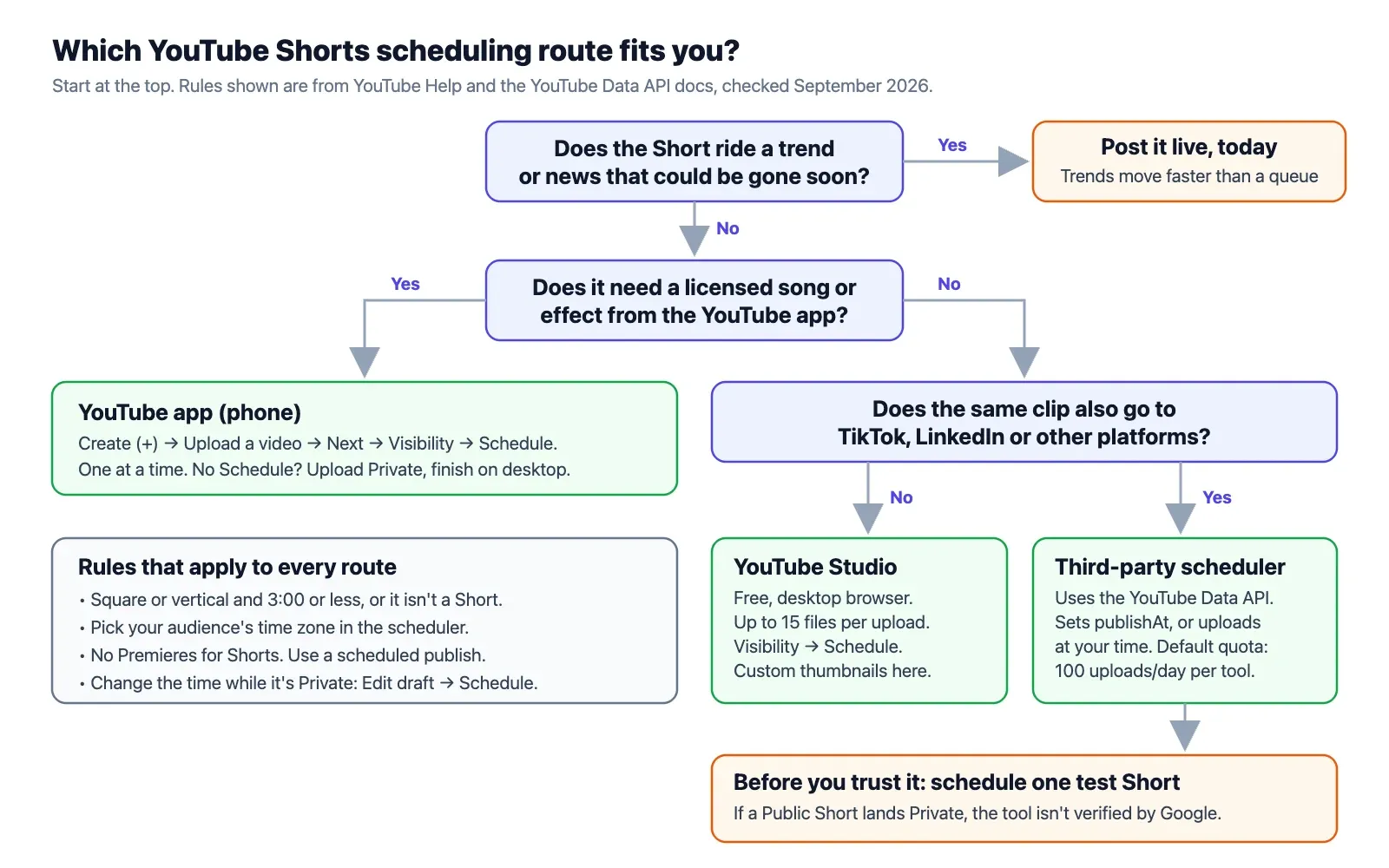
The practical limit is not the date picker. It is whether the Short will still make sense when it goes out. A Short about a trend, a product launch date or a news story should not sit in a queue for six weeks. Schedule evergreen Shorts far ahead. Post timely ones the same day.
#Can you premiere a YouTube Short?
No. YouTube's Premieres page says Shorts are not supported (YouTube Help). Premieres are for long-form videos, and they also exclude 360°, VR180 and output above 1080p.
Here is how the two options differ, so you know what you are giving up:
| Scheduled publish | Premiere | |
|---|---|---|
| Works for Shorts | Yes | No |
| Before the time | Private. Only you see it. | A public watch page with a countdown |
| Viewers can set a reminder | No | Yes, they get a notification about 30 minutes before and at the start |
| Live chat at launch | No | Yes |
| After the time | A normal public Short | A normal public video with the chat replay |
If you want a "launch moment" for a Short, the usual workaround is to schedule it and post a Community post or a long-form Premiere at the same time pointing to it.
#How to edit, reschedule or cancel a scheduled Short
This is where YouTube is kinder than TikTok. You can change a scheduled Short without re-uploading it.
To change the title, description or thumbnail: open YouTube Studio → Content → Shorts, click the Short, edit the details and click Save. The schedule stays as it is.
To change the time (YouTube Help):
- In YouTube Studio, go to Content.
- Select the Short.
- Click Edit → Visibility.
- Make sure the visibility is Private. Click Edit draft and choose the new time under Schedule.
- Save.
To publish it now: in the same Visibility menu, set it to Public and click Publish.
To cancel it: set the visibility to Private without a schedule. It stays in your Content list as a private video. Delete it only if you are sure. Deleting is permanent.
What you cannot change: the video file itself. YouTube does not let you swap the file on an existing upload. If the edit is wrong, upload the fixed file and delete the old one. The in-Studio editor can trim or blur, but it is slow on long uploads and not every change is possible.
#What happens when a scheduled Short goes live
At the scheduled time, YouTube switches the Short from private to public. From the viewer's side it looks like any other new Short.
| At publish time | What YouTube says |
|---|---|
| Visibility | Private → Public at the time you set |
| Subscriber notifications | Sent unless you unticked "Publish to subscriptions feed and notify subscribers". Viewers get at most 3 upload notifications from one channel in 24 hours (YouTube Help) |
| "Published on" date | Pacific Time date |
| Shorts feed | The Short becomes eligible for the Shorts feed like any public Short. YouTube does not say scheduled Shorts are treated differently. |
| Community Guidelines strike | Scheduled videos don't publish during the penalty period. They stay private and you reschedule them after (YouTube Help) |
The 3-notifications rule matters if you schedule several Shorts on one day. Your fourth upload that day will not ring anyone's bell. If you post 4 Shorts a day, spread them out, or untick notifications on the less important ones so the bell goes to the ones you care about.
#Do scheduled Shorts get fewer views?
YouTube has never said that scheduled uploads rank lower than uploads made by hand. We found no published study that tests it. The worry comes from creator forums, where people disagree.
What is true: when you post by hand, you are online. You answer the first comments and pin one. A Short that goes out at 3 am while you sleep misses that. The fix is to schedule for an hour when you are awake and can spend ten minutes on comments.
#How to bulk schedule YouTube Shorts
YouTube Studio takes up to 15 files in one upload (YouTube Help). There is no "schedule all" button. You schedule each one from its draft. It is still much faster than doing them one by one.
- In Create → Upload videos, select up to 15 files (Ctrl-click on Windows, Cmd-click on Mac).
- Studio uploads them and shows a list.
- Click Edit draft next to the first file.
- Fill in the title, description and made-for-kids answer.
- On Visibility, click Schedule and set its slot.
- Repeat for each file. Files you don't finish stay as private drafts in Content.
Tips that save time:
- Set upload defaults first. In Studio → Settings → Upload defaults, set the category, description footer and tags you use on every Short. Each draft then starts filled in.
- Name the files in posting order.
01-mon-hook-test.mp4,02-tue-tip.mp4. The list then reads like your calendar. - Write titles in a doc first. Paste them in. Spell-check once, not fifteen times.
- Watch the daily upload limit. YouTube has a per-channel daily cap it does not publish. It "may vary by country/region or channel history" (YouTube Help). If you see "Daily upload limit reached", wait 24 hours.
#Scheduling YouTube Shorts with a third-party tool
Third-party schedulers connect to your channel through Google sign-in and the YouTube Data API. They all call the same upload method, videos.insert. The difference between tools is when they call it.
#Two ways a tool can schedule a Short
| Route A: set a publish time on YouTube | Route B: upload at the scheduled time | |
|---|---|---|
| How it works | The tool uploads the Short straight away as private, with status.publishAt set to your time. YouTube flips it to public. |
The tool keeps the file on its own servers. At your time, it uploads the Short with the visibility you chose. |
| Where the Short sits before its time | In your YouTube Studio, as Scheduled | In the tool, not on YouTube yet |
| Who publishes it | YouTube | The tool |
| If the tool goes down near publish time | Nothing changes. It is already on YouTube. | The upload can be late, and the tool should retry |
| Processing delay | Done well before the time | A large file needs a few minutes to process after upload |
| Changing it later | In YouTube Studio or the tool | In the tool, until it uploads |
| Copyright Checks before launch | Yes, you can see them in Studio | Only after it uploads |
The rules for Route A come from the Data API reference: publishAt "can be set only if the privacy status of the video is private", and if the time is in the past, "the video will be published right away" (YouTube Data API: Videos).
Neither route is wrong. Route A is closer to what Studio does. Route B lets a tool hold the post, show it in one calendar with your other platforms, and let you edit everything up to the last minute. Ask a tool which one it uses before you rely on it for a launch.
#The API limits behind every tool
These numbers come from Google's official Data API docs. They apply to the tool's Google project, shared by every user of that tool, not to your channel alone.
| Limit | Official number | What it means for you |
|---|---|---|
| Uploads per day (default) | 100 videos.insert calls per project (Getting started) |
A tool with a default quota can upload 100 videos a day across all its users |
| Cost of one upload | 1 unit from the upload bucket (videos.insert) | Uploads have their own quota, separate from other calls |
| Other API calls | 10,000 units a day combined | Editing a video with videos.update costs 50 units (quota costs) |
| Quota reset | Midnight Pacific Time | A tool that ran out resets overnight, US time |
| Max file size | 256 GB | Not a real limit for Shorts |
| Unverified tools | Uploads from unverified API projects created after 28 July 2020 "will be restricted to private viewing mode" (videos.insert) | If a tool's Shorts always come out private, the tool has not passed Google's audit |
That last row is the YouTube version of TikTok's audit rule. If you schedule a Short as Public through a tool and it goes out as Private, the problem is the tool's Google project, not your channel. Test with one Short before you trust a new tool with a week of content.
#What an API upload cannot do
The Data API is narrower than the Studio app. Before you choose a tool, know these limits:
- No Shorts switch. The API has no "this is a Short" field. YouTube classifies an API upload with the same rules as a Studio upload: square or vertical, 3 minutes or less.
- No Shorts sound library. Music must be mixed into the file.
- Custom thumbnails need a separate call. Some tools support it, some don't. The account must be verified either way.
- Notifications default to on.
videos.inserthas anotifySubscriberssetting that defaults to true (videos.insert).
For a comparison of the tools themselves, see our YouTube video scheduler guide. If TikTok is part of the same routine, the TikTok video scheduler checklist covers what to test there.
#Native YouTube scheduling vs a third-party scheduler
| YouTube Studio / app (native) | Third-party scheduler | |
|---|---|---|
| Price | Free | Free tiers exist; paid plans common |
| How far ahead | No published limit | Set by the tool |
| Edit after scheduling | Yes: details any time, time while Private | Yes, in the tool (Route B) or in Studio (Route A) |
| Swap the video file | No, upload again | Usually yes, until it uploads (Route B) |
| Bulk upload | Up to 15 files, schedule each one | Depends on the tool |
| Custom Shorts thumbnail | Yes, desktop, verified accounts | Depends on the tool |
| Shorts sound library | Phone app only | No |
| Same clip to TikTok, Reels, LinkedIn | No | Yes, that is the main reason to use one |
| One calendar for every platform | No | Usually yes |
| Premieres | Long-form only | Not for Shorts either |
| Risk of private-only uploads | None | Yes, if the tool's Google project is unverified |
| Daily upload ceiling | Your channel's daily limit | Your channel's limit and the tool's project quota |
The short version: if you post only to YouTube, the native scheduler is enough and it is free. Once the same vertical clip goes to YouTube, TikTok and LinkedIn every week, a third-party tool saves real time. If LinkedIn is one of those platforms, our guide to building a personal brand on LinkedIn covers what to post there. Our YouTube Shorts vs TikTok comparison shows what changes between those two, and how to post to multiple social media accounts at once covers the wider workflow.
#Why a scheduled Short fails, or goes wrong
These are the problems people search for most, with the likely cause and the fix.
| Problem | Likely cause | Fix |
|---|---|---|
| No Schedule option on the phone | Old app version, or the option is behind Visibility | Update the app. Tap Visibility on Add details. Or upload as Private and schedule on desktop. |
| Scheduled Short uploaded as a normal video | File is over 3:00, or wider than square | Trim to 3:00 or less, export at 9:16, upload again |
| Went live at the wrong hour | Wrong time zone in the scheduler | Pick your audience's time zone by name, not your own |
| "Published on" shows yesterday's date | The watch page uses Pacific Time | Nothing to fix. It is display only. |
| Can't change the scheduled time | The Short isn't set to Private | Visibility → Private → Edit draft → new time |
| Scheduled Short never went public | A Community Guidelines strike froze publishing | Reschedule after the penalty period ends |
| Subscribers weren't notified | More than 3 uploads that day, or the notify box was unticked | Spread uploads. Check "Publish to subscriptions feed and notify subscribers". |
| Tool's Short came out Private | The tool's Google project is unverified | Change it to Public by hand. Use a verified tool. |
| Tool says quota exceeded | The tool's project hit its daily upload quota | It resets at midnight Pacific Time. Ask the tool about retries. |
| "Daily upload limit reached" | Your channel's own 24-hour cap | Wait 24 hours. Spread uploads across days. |
| Copyright claim appeared after scheduling | Checks finished after you scheduled | Open the Short in Studio. Trim or replace the audio before its time. |
#A weekly YouTube Shorts scheduling workflow
This routine fits one batch session a week. It uses YouTube's own advice to "film Shorts in batches" and save work in progress as drafts (YouTube Help: upload schedule tips).
| When | What you do | Time |
|---|---|---|
| Monday | Film 5 to 7 Shorts in one session | 60–90 min |
| Tuesday | Edit, add captions, mix in music, export 1080 × 1920, under 3:00 | 60–90 min |
| Tuesday | Write titles and descriptions in one doc. Spell-check there. | 15 min |
| Tuesday | Upload all files in one batch on desktop. Schedule one per day at your best hour. | 20 min |
| Tuesday | Add custom thumbnails where you need them | 10 min |
| Daily | Spend 10 minutes on comments in the first hour after each Short goes live | 10 min |
| Any day | Post trend Shorts by hand from the phone, the same day | As needed |
| Sunday | Check Studio → Analytics. Note which Short and which hour did best. | 10 min |
Why it works:
- One upload session. Up to 15 files go in at once, so a week fits in one batch.
- No time zone sums. You pick your audience's time zone in the scheduler every time.
- Trends stay out of the queue. They get posted while they still matter.
- Checks run early. Any copyright claim shows up days before the Short goes public.
- Notification budget. One Short a day stays well under the 3-a-day bell limit.
For a month-long template with slots and post types, use the YouTube upload calendar. It pairs with the TikTok content calendar template if you post the same clips on both.
#Pre-schedule checklist
- Vertical 9:16, 1080 × 1920, no black bars baked in
- Length 3:00 or less, checked in exact seconds
- Music cleared for your use, or mixed in from YouTube's Audio Library
- Title written, key words first, under 100 characters
- "Made for kids" answered
- Checks passed with no claims
- Time zone set to your audience's, not yours
- Notify subscribers ticked (or unticked on purpose)
- Custom thumbnail added if your account is verified
#Scheduling YouTube Shorts with Schedule & Chill
Schedule & Chill is a scheduler for posting the same content to several platforms from one place, or from an AI assistant like Claude through our MCP server. YouTube is one of the platforms you can connect today, along with LinkedIn, Bluesky and Mastodon. It is free right now: 2 social accounts, 500 posts a month and uploads up to 400 MB.
For each YouTube post you set the title (up to 100 characters), description, privacy (public, unlisted or private), category and the made-for-kids answer. Schedule & Chill uses Route B from the table above: we hold the post and upload the file at the scheduled time. It does not sit in YouTube Studio as Scheduled before then, and you can edit it in Schedule & Chill until it goes out. We upload the file as it is, so a 9:16 file of 3 minutes or less becomes a Short. We do not set custom thumbnails. Add one in Studio afterwards if you need it. YouTube's upload quota is shared by every user, so we also cap how many YouTube uploads one account can send per day.
If you only post to YouTube, Studio's own scheduler is free and does the job. A separate tool helps when the same clip also goes to LinkedIn or Mastodon each week.
#Keep reading
- YouTube Shorts dimensions, safe zone and thumbnail size — the 1080 × 1920 export settings that make a file land as a Short.
- How long a YouTube Short can be, and how long it should be — the 3-minute rule, music caps and a length-by-goal table.
- When to schedule your Shorts: 5 studies compared — the evening slots most studies agree on, plus a two-week test.
- Uploading Shorts from a computer, step by step — batch uploads, desktop-only thumbnails and the checks that confirm it became a Short.
- YouTube Shorts vs TikTok: reach, pay and specs — which platform should get your best ideas first.
- How TikTok scheduling differs from YouTube's — the 10-day limit and the no-edit rule, if you post the same clip there.
#Frequently Asked Questions
Can you schedule YouTube Shorts? Yes. Shorts use the same scheduler as every other YouTube upload. In YouTube Studio, upload the file, click the Schedule card on the Visibility step, and set the date, time and time zone. The Short stays private until then and goes public at the time you set.
How do I schedule a YouTube Short on my phone? In the YouTube app, tap Create (+), then Upload a video, and pick your clip. Tap Next, fill in the details, then tap Visibility and choose Schedule. Set the date and time, go back, and tap Upload Short. If you don't see Schedule, update the app, or upload as Private and schedule it from YouTube Studio on a computer.
How far in advance can you schedule YouTube Shorts? YouTube does not publish a limit. Some guides say up to a year. In practice you can queue weeks or months ahead, unlike TikTok's 10 days. Open the date picker and scroll forward to see your own limit.
Can you edit a scheduled YouTube Short? Yes. You can change the title, description and thumbnail at any time from Content in YouTube Studio. To change the time, keep the visibility Private, click Edit draft and pick a new time under Schedule. You cannot swap the video file. For that, upload the new file and delete the old one.
Is it good to schedule YouTube Shorts? YouTube has not said that scheduled Shorts rank lower, and no published study shows it. Scheduling lets you post at your audience's best hour and keep a steady rhythm, which YouTube's own tips stress. The one thing you lose is being online for the first comments, so schedule for an hour when you are awake.
Can you premiere a YouTube Short? No. YouTube's Premieres help page says Shorts are not supported. Use a normal scheduled publish instead. If you want a launch moment, pair it with a Community post or a long-form Premiere at the same time.