

Can You Schedule Posts on TikTok? Yes, Here's How
Yes, you can schedule posts on TikTok. TikTok's built-in scheduler lives in TikTok Studio. It is free, and it lets you set a video to go live anywhere from 15 minutes to 10 days ahead. You can also use a third-party TikTok video scheduler that connects through TikTok's official Content Posting API. This guide covers both routes, the limits TikTok does and does not publish, and what to do when the Schedule option is missing.
Every limit here comes from TikTok's own help, business and developer pages, checked on 24 September 2026. Where TikTok's pages disagree with each other, or with popular guides, you will see both claims side by side.
#Quick answer
- Can you schedule TikTok posts? Yes. Use TikTok Studio in a desktop browser, the separate TikTok Studio phone app, or a third-party tool.
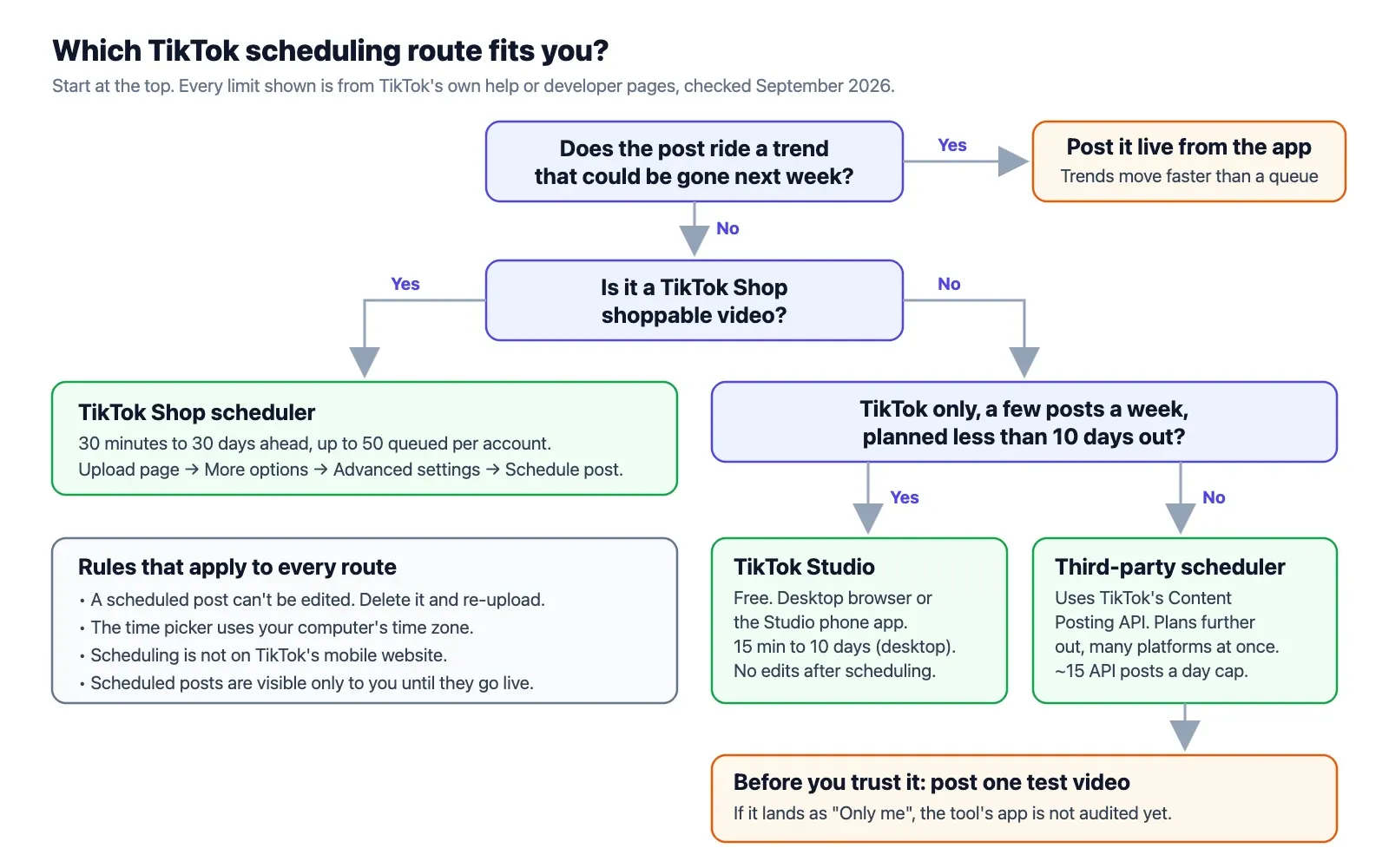
- How far ahead? 15 minutes to 10 days for normal posts (TikTok Help Center). Shoppable videos from TikTok Shop sellers and creators get 30 minutes to 30 days.
- Can you edit a scheduled TikTok? No. You delete it and upload it again.
- Does the main TikTok app schedule? Popular guides say no, and scheduling happens in TikTok Studio. TikTok's mobile website does not support it at all.
- Which accounts can schedule? TikTok's own pages disagree. The quickest test is to open the upload page and look for the Schedule option.
- Third-party tools? They work through the Content Posting API. Until TikTok audits the tool's app, every post it makes is forced to private.
#The three ways to schedule a TikTok
Before the step-by-steps, here is the full map. Most confusion about TikTok scheduling comes from mixing these three up. They have different time windows and different rules.
| Route | Where you find it | How far ahead | Cost | Best for |
|---|---|---|---|---|
| TikTok Studio (desktop) | tiktok.com/tiktokstudio → Upload | 15 min to 10 days | Free | One account, a week of posts |
| TikTok Studio app | Separate app on iOS and Android | Not published separately | Free | Scheduling from your phone |
| TikTok Shop scheduler | Shoppable video upload page | 30 min to 30 days, up to 50 queued | Free (Shop accounts) | Product videos, sales campaigns |
| Third-party scheduler | Tools using the Content Posting API | Set by the tool | Free to paid | Several platforms, teams, longer plans |
The 30-day number that appears in many guides comes from TikTok Shop. TikTok's Seller University says shoppable videos can be scheduled "from 30 minutes up to 30 days in advance" and that you can "schedule up to 50 videos per account at a time" (TikTok Shop Academy). That is a Shop feature. It is not the general scheduler.
#How to schedule posts on TikTok from a desktop
This is the route TikTok documents most fully. You need a computer and a desktop browser. Chrome, Safari, Edge and Firefox all work. The mobile browser version of TikTok does not offer scheduling.
- Log in at tiktok.com on your computer. Open TikTok Studio at tiktok.com/tiktokstudio, or click Upload at the top of your feed.
- Upload your video. Drag the file in, or click Select video. TikTok Studio accepts MP4 or WebM files. Videos must be at least 720×1280, up to 30 minutes long and under 10 GB (TikTok Help Center, Tools for creators). For the full spec list and safe zones, see our TikTok video size guide.
- Fill in the post details. Add your caption, hashtags and mentions. Pick a cover frame. Set Who can watch this video. Then choose whether people can comment, Duet or Stitch.
- Turn on scheduling. Find the Schedule option in the post settings. Depending on your version, it is a toggle or a choice between "Now" and "Schedule". Then pick a date and a time. The time zone is your computer's time zone, not your audience's (TikTok Help Center).
- Click Schedule. The video uploads now and stays hidden until the time you picked. When it goes live, TikTok sends a push notification to your phone.
TikTok's own announcement of the feature walks through the same four steps with screenshots: Introducing Video Scheduler on the TikTok for Business blog.
#The time zone trap
Step 4 is where most scheduling mistakes happen. The picker uses the clock on your computer. Say you are in London and most of your viewers are in New York. If you pick "6 pm", the video goes out at 6 pm London time. That is 1 pm in New York.
Before you schedule, convert your target time into your own time zone. Our guide to the best time to post on TikTok explains how to find when your own followers are active. Use TikTok Studio's Viewers tab, not a generic chart.
#Can you schedule TikTok posts on mobile?
Yes, but not from the TikTok app you watch videos in. There are three different "mobile" experiences, and each one behaves differently:
| On your phone | Can it schedule? | Source |
|---|---|---|
| TikTok Studio app (iOS, Android) | Yes | TikTok Help Center: "You can use TikTok Studio to upload, schedule, and edit posts" |
| Main TikTok app | Popular guides say no. Scheduling is in Studio. | Buffer, Hootsuite (see below) |
| TikTok in a phone's browser | No | TikTok Help Center: "This feature is not available for TikTok Mobile Web" |
TikTok launched TikTok Studio in May 2024. The TikTok newsroom announcement says it "replaces Creator tools within the TikTok app as well as the Creator Center webapp" and is "available to creators who are 18 years or older". So if you are under 18, you may not see Studio at all.
To schedule on your phone with the TikTok Studio app:
- Download TikTok Studio from the App Store or Google Play. It is a separate app from TikTok.
- Log in with your normal TikTok account. The two apps stay linked.
- Tap Upload and pick a video from your camera roll.
- Edit if you need to. Then add your caption and cover, and set who can watch.
- Tap Schedule post, choose the date and time, and confirm.
The guides disagree here as well. Hootsuite's guide (updated June 2026) says "you can't schedule posts from TikTok's mobile app". Buffer's guide (updated September 2026) says scheduling works "using the TikTok web browser or the TikTok Studio mobile app". Both statements fit TikTok's own pages. The main app does not schedule, and the Studio app does. TikTok rolls features out region by region, so if Schedule post is missing in your Studio app, use the desktop route.
#How far in advance can you schedule a TikTok?
For a normal video, TikTok's Help Center gives the rule directly: "You can schedule a minimum of 15 minutes and a maximum of 10 days in advance of publishing" (source).
Several well-known guides say 30 days. Here is who says what:
| Source | Window it states | What it applies to |
|---|---|---|
| TikTok Help Center, "Schedule video" | 15 min to 10 days | Desktop web scheduling |
| TikTok for Business blog | 15 min to 10 days | Video Scheduler |
| TikTok Shop Academy (Aug 2026) | 30 min to 30 days | Shoppable videos only |
| Hootsuite (Jun 2026) | 10 days | TikTok Studio, desktop |
| Sprout Social (Sep 2025) | 15 min to 10 days | Desktop Video Scheduler |
| Buffer (Sep 2026) | 30 days | Web and Studio app |
Here is our reading. The only official 30-day window we could find is the TikTok Shop one. TikTok may also be testing a longer window for some accounts. The date picker is the final word. Open it and scroll forward. Where the calendar stops is your limit.
If you need to plan further than 10 days ahead, you have two options. Upload the finished videos as drafts now and schedule them in rolling batches. Or use a third-party tool that holds posts for as long as you like and sends each one to TikTok at the right time. The next section explains how that works.
#How many TikTok posts can you schedule?
TikTok publishes a number for only one of the routes:
| Route | Published limit |
|---|---|
| TikTok Shop scheduler | Up to 50 scheduled videos per account at a time (TikTok Shop Academy) |
| TikTok Studio (normal posts) | No published cap |
| Third-party tools (Content Posting API) | "typically around 15 posts per day / creator account", shared across every tool you use (TikTok developer guidelines) |
That last line matters if you use more than one tool. The daily cap belongs to your TikTok account, not to the tool. So two schedulers posting to the same account share one budget. Past it, TikTok rejects posts with the error spam_risk_too_many_posts.
How many posts you should schedule is a different question. For planning a realistic weekly rhythm, our TikTok posting calendar has a copy-paste template.
#What you can't schedule on TikTok
The scheduler handles a finished video file well. It does not cover everything TikTok can do. Here is what TikTok's documentation says, and what it leaves out.
| Thing you might want to schedule | Can you? | What TikTok says |
|---|---|---|
| Edits after scheduling (caption, time, video) | No | "you won't be able to edit the video, captions, or scheduled time after scheduling the post" (TikTok for Business) |
| A post set to private ("Only me") | No, for shoppable videos | "Scheduled posting is only available for videos with public or limited visibility settings" (TikTok Shop Academy) |
| Trimming a video on desktop | No | "When you upload a video on your web browser, your entire video will be uploaded. To change the length of the video, upload your video in the TikTok app." (TikTok Help Center) |
| Scheduling from TikTok's mobile website | No | "This feature is not available for TikTok Mobile Web" |
| Stories | Not documented | TikTok's scheduling pages only describe feed videos |
| LIVE | No | A LIVE is live. The LIVE Events tool lets you announce a time, but you still go live yourself |
| Photo posts | Not documented for the native scheduler | The help pages describe video only. The Content Posting API does support photo posts (up to 35 images) |
The practical point: plan to finish the video before you schedule it. That means sound, text, effects and length. The scheduler is a timed upload. It is not a draft you can come back to.
TikTok's own advice for Shop videos is useful for everyone: "Save trend-based content for manual posting since trends expire quickly" (TikTok Shop Academy). Schedule evergreen videos. Post trend videos by hand, the same day.
#How to edit, reschedule or delete a scheduled TikTok
You cannot change a scheduled post in place. To change anything, even a typo in the caption, you delete the scheduled post and schedule it again.
To find your scheduled posts:
- On desktop, open TikTok Studio and go to Posts. Scheduled videos are listed there with their time.
- In the app, go to your Profile. TikTok's help page says "Scheduled posts can be seen in the Profile view". The Shop scheduler marks each one with a clock icon and the scheduled date on the thumbnail.
- Scheduled videos are visible only to you until they publish. They also do not appear in analytics until then.
To reschedule or fix one:
- Open the scheduled post and choose Delete.
- If you see Delete and re-edit, pick it. TikTok Shop's documentation says this sends the video back to your Drafts, where you can change the content or the time. If you only see Delete, you will need the original file to upload again.
- Make your changes and schedule it again.
Keep your original video files until the post is live. People often schedule from a phone export, delete the file to save space, then find a typo in the caption. At that point the only copy is the one they are about to delete.
Deleted by mistake? Published posts go to a Recently deleted folder for 30 days, and you can restore them there (TikTok Help Center). TikTok's help pages do not say whether a deleted scheduled post goes there too. Do not count on it.
#Which TikTok account type do you need to schedule?
TikTok's own pages disagree, which is why so many guides disagree too.
| TikTok page | What it says |
|---|---|
| Help Center, "Schedule video" | "Only a 'Business Account' or over with a 10,000 followers or more can access desktop scheduling." |
| TikTok for Business blog | "You'll need a Business Account in order to access desktop scheduling." The same post also says the feature is for "creators and Business Accounts". |
| Help Center, "Tools for creators" | TikTok Studio lets you "Upload, schedule, and edit posts", and "Creator tools are available for both Personal and Business Accounts." |
| TikTok newsroom | TikTok Studio "is available to creators who are 18 years or older". |
The older pages tie scheduling to Business Accounts. The newer TikTok Studio page lists scheduling as a creator tool for personal accounts too. The wording of the 10,000-follower line is unclear. It may describe an early rollout rather than a rule that still applies.
What to do:
- Check the upload page on desktop first. If the Schedule option is there, your account qualifies. You are done.
- If it is missing, check your age on the account. Some Studio features are 18+.
- If it is still missing, think carefully before you switch to a Business Account. A Verified Business Account can only use the Commercial Music Library, not the general music library. That changes which sounds you can use (TikTok Help Center, account types). TikTok also advises against switching back and forth, because your verification is lost each time.
#Scheduling TikTok posts with a third-party tool
A third-party scheduler, such as Buffer, Later, Hootsuite, Sprout Social or Metricool, does not use TikTok's scheduler at all. The tool stores your post on its own servers. At the scheduled time, it sends the post to TikTok through the Content Posting API. That API has no "publish at" field. The timing is the tool's job, which is why these tools can plan further ahead than 10 days.
#Direct Post vs Upload
The API has two modes. It matters which one your tool uses.
| Mode | What happens at the scheduled time | Your job |
|---|---|---|
| Direct Post | The video or photo is published to your profile automatically | Nothing, if the tool is audited |
| Upload | The video lands in your TikTok inbox as a draft | Open TikTok, finish editing, tap Post |
Upload mode is effectively a reminder with the file attached. It suits posts where you want to add a TikTok sound or effect in the app before posting. Direct Post is true hands-off scheduling.
#The audit rule, and why your first post may come out private
This rule catches most people. TikTok's developer docs say: "All content posted by unaudited clients will be restricted to private viewing mode" (Content Posting API, Get Started). While an app is unaudited:
- Only 5 users can post through it in any 24-hour window.
- Those accounts must be set to private when they post. If not, the request fails with
unaudited_client_can_only_post_to_private_accounts. - Every post goes out as "Only me" (
SELF_ONLY). To make it public later, you switch your account back to public and then change each post's setting to "Everyone" by hand (TikTok content sharing guidelines).
Once the tool passes TikTok's audit, these limits go away. The audit is about the tool's app, not your account. Nothing you change in your TikTok settings will fix an unaudited tool. For the developer side of this, including the error codes, see Does TikTok have an API?
How to check a tool before you rely on it: schedule one test video a few minutes out, set to public. If it arrives as "Only me", or if the tool asks you to make your whole account private first, the tool is not audited yet.
#What an audited tool must show you
TikTok requires every tool that posts on your behalf to show certain controls. If your scheduler is missing these, it is not following TikTok's rules:
- Your TikTok nickname, so you know which account the post goes to.
- A privacy dropdown with no default. You must choose Everyone, Friends or Only me yourself.
- Comment, Duet and Stitch checkboxes, all off until you turn them on. Photo posts only get Comment.
- A commercial content disclosure toggle. Branded content cannot be set to private.
- The line "By posting, you agree to TikTok's Music Usage Confirmation" before the post button.
These rules come from TikTok's content sharing guidelines. Some also affect planning. A tool must check your account's maximum video length before posting. The API accepts videos up to 10 minutes, though every creator can post at least 3 minutes and some have 5 or 10 (Media Transfer Guide).
For a comparison of the tools themselves, see our TikTok video scheduler guide.
#Native TikTok scheduling vs a third-party scheduler
| TikTok Studio (native) | Third-party scheduler | |
|---|---|---|
| Price | Free | Free tiers exist; paid plans common |
| How far ahead | 15 min to 10 days | Set by the tool, often weeks or months |
| Edit after scheduling | No, delete and re-upload | Usually yes, until the post is sent |
| Cross-post to Reels, Shorts, LinkedIn | No | Yes, that is the main reason to use one |
| Calendar view of all posts | Posts list only | Usually a calendar |
| Team approvals | No | Depends on the tool |
| Daily post limit | None published | ~15 posts per day per account, shared across tools |
| Photo posts | Not documented | Supported by the API (up to 35 images) |
| Risk of private-only posts | None | Yes, if the tool's app is unaudited |
| Account needed | TikTok account (Studio features 18+) | TikTok account connected to the tool |
| TikTok sounds and effects | Only what is baked into your file | Only what is baked into your file, or finish in the app via Upload mode |
The short version: if you post only to TikTok and plan a week at a time, the native scheduler is enough. Once you post the same video to TikTok, Reels and Shorts, or plan more than 10 days out, a third-party tool saves real time. Our YouTube Shorts vs TikTok comparison covers what changes between those two platforms, and how to schedule YouTube Shorts covers the YouTube side. If LinkedIn is part of the same plan, our guide to building a personal brand on LinkedIn covers the text-first side.
#Why a scheduled TikTok fails, or never shows up
These are the problems people search for most, with the likely cause and the fix.
| Problem | Likely cause | Fix |
|---|---|---|
| No Schedule option on desktop | Account type, age, or regional rollout | See the account-type section above. Try the TikTok Studio app. |
| No Schedule option on phone | You are in the main TikTok app or a mobile browser | Use the TikTok Studio app or a desktop browser |
| Can't pick the time you want | Less than 15 minutes out, or more than 10 days | Pick a time inside the window, or schedule in batches |
| Video went out at the wrong hour | The picker uses your computer's time zone | Convert your audience's time into your own before picking |
| Scheduled post isn't on your profile | Scheduled posts are visible only to you | Check TikTok Studio → Posts, or your profile's scheduled items |
| Post published but nobody can see it | The tool's app is unaudited, so the post went out as "Only me" | Change the post to Everyone by hand. Switch to an audited tool. |
| Tool says "too many posts" | The account hit the API cap of about 15 posts a day | Spread posts across days. Check whether another tool also posts to this account. |
| Tool rejects the video as too long | Longer than your account's allowed length for API posts | Trim it, or post that one from the app |
| Post didn't go live and no error shown | Connection drop during upload, or a policy review | Check notifications and TikTok Studio → Posts. Re-upload if it is missing. |
| "Delete and re-edit" not shown | Only documented for the Shop scheduler | Delete, then upload the original file again |
#Do scheduled TikToks get fewer views?
TikTok has never said that scheduled posts are treated differently from posts made by hand. We could find no published study that tests it. The claim comes from creator anecdotes, like this r/SocialMediaMarketing thread. The people who replied there disagree with each other.
Two things are true, and they are easy to confuse with "scheduling hurts reach":
- Scheduled posts are usually evergreen. Trend posts are made and posted the same day. If you compare the two groups, the trend posts often win because of the trend, not the posting method.
- When you post by hand, you are online. You answer comments in the first hour. A scheduled post that goes out while you are asleep misses that early activity.
You can test it on your own account. Over two weeks, alternate the same kind of video between scheduled and manual posting, at the same hour. Compare median views, not your single best post. If the gap is real for your account, you will see it. If it isn't, you have your answer.
#A simple weekly TikTok scheduling routine
This is a routine you can copy. It fits inside TikTok's 10-day window and avoids the edit trap.
| When | What you do | Time |
|---|---|---|
| Monday | Film 3 to 5 videos in one session | 60–90 min |
| Tuesday | Edit, add text and sound, export final files | 60 min |
| Tuesday | Write captions in a doc, check the spelling there | 15 min |
| Tuesday | Schedule all of them for the next 7 days in TikTok Studio | 15 min |
| Daily | Answer comments in the first hour after each post goes live | 10 min |
| Any day | Post trend videos by hand, the same day | As needed |
| Sunday | Check TikTok Studio analytics. Note which hour did best. | 10 min |
Why it works:
- Captions are written outside TikTok. You cannot fix a typo after scheduling, so check the spelling before you paste.
- One week, not ten days. You keep a three-day buffer, so a missed batch day does not leave a gap.
- Trends are kept out of the queue. They get posted live while they still matter.
- The comment slot is protected. That covers the part of manual posting that actually helps reach.
For a month-long version with post types and slots, use the TikTok posting calendar.
#A pre-schedule checklist
Run through this before you click Schedule. Each item is something you cannot fix afterwards.
- Video is final: length, sound, text, and captions burned in if you want them
- Vertical 9:16, at least 720×1280, key text inside the safe zone
- Caption spell-checked, hashtags and @mentions correct
- Cover frame chosen
- "Who can watch" set to Everyone (unless you mean otherwise)
- Comments, Duet and Stitch set the way you want
- Commercial content disclosure turned on if it promotes a brand
- Time converted from your audience's time zone to your computer's
- Original file kept until the post is live
#Scheduling TikTok with Schedule & Chill
Schedule & Chill is a scheduler for posting the same content to several platforms from one place, or from an AI assistant like Claude through our MCP server. It is free right now: 2 social accounts, 500 posts a month and 400 MB uploads. Today it publishes to LinkedIn, Bluesky, Mastodon and YouTube. TikTok support is opening to all accounts soon.
If you post only to TikTok, TikTok Studio's own scheduler is free and does the job. A third-party tool starts to pay off when the same video also goes to YouTube Shorts, or when you want a calendar that covers more than 10 days.
#Keep reading
- Four best-time-to-post studies for TikTok, side by side — find the hour your followers are online before you pick a slot.
- How YouTube video schedulers compare — the same tool questions, asked for YouTube uploads and Shorts.
- Best time to post YouTube Shorts — the Shorts version of the timing question, for clips you post on both apps.
- A LinkedIn content calendar you can copy — plan the text posts that sit next to your videos.
- Posting one update to several accounts at once — the options when one video goes to many profiles.
#Frequently Asked Questions
Can you schedule posts on TikTok for free? Yes. TikTok Studio's scheduler costs nothing. It works in a desktop browser at tiktok.com/tiktokstudio and in the separate TikTok Studio phone app. It lets you schedule a video from 15 minutes to 10 days ahead. Many third-party schedulers also have free plans.
Why can't I schedule a TikTok? The most common reasons: you are in the main TikTok app or a mobile browser instead of TikTok Studio, your account or age does not qualify for the feature in your region, or the time you picked is less than 15 minutes or more than 10 days away. Try a desktop browser first. If the Schedule option is still missing, check the account-type section above.
How do I schedule a TikTok post on my phone? Download the TikTok Studio app, which is separate from TikTok, and log in with your TikTok account. Tap Upload, pick your video, add a caption and cover, then tap Schedule post and choose the date and time. TikTok's mobile website does not support scheduling.
Can you edit a scheduled TikTok? No. TikTok does not let you change the video, caption or time after scheduling. Delete the scheduled post and schedule it again. Keep the original video file until the post is live, so you can re-upload it.
Where can I find my scheduled posts on TikTok? On desktop, open TikTok Studio and go to Posts. In the app, scheduled posts appear on your profile. Only you can see them until they publish, and they do not show in analytics until then.
Do scheduled TikToks get less views? TikTok has not said that scheduled posts are ranked differently, and no published study shows it. The difference people notice usually comes from what gets scheduled (evergreen posts, not trends) and from not being online to reply to comments in the first hour. Test it on your own account over two weeks before you decide.