

How to Upload YouTube Shorts from PC (Step by Step)
To upload YouTube Shorts from a PC, open YouTube Studio in your browser, click Create → Upload videos, and pick a square or vertical video that is 3 minutes or shorter. YouTube turns it into a Short on its own. There is no separate Shorts button on a computer, and the #Shorts hashtag is not required.
The same steps work on Windows, Mac and Chromebook, because YouTube Studio runs in the browser. Every rule below comes from YouTube's own Help Center, checked on 24 September 2026, with a link next to it. If you want the Short to go out later, our complete guide to scheduling YouTube Shorts covers every route after the upload.
#Quick answer
- Where: studio.youtube.com → Create (top-right) → Upload videos (YouTube Help).
- What makes it a Short: a square or vertical aspect ratio and a length of up to 3 minutes. Both must be true (YouTube Help).
- #Shorts hashtag: optional. YouTube's rules sort uploads by shape and length, not by the hashtag.
- How many at once: up to 15 files in one upload. Click Edit draft on each to finish its details.
- Schedule it: on the Visibility step, open Schedule and pick a date, time and time zone. The Short stays private until then.
- Custom thumbnail: Shorts thumbnails can now only be uploaded from YouTube Studio on a computer, and only on a verified account (YouTube Help).
- Music: the Shorts sound library is part of the phone app's creation tools. From a computer, mix the music into the file before you upload.
#How to upload YouTube Shorts from PC: the 6 steps
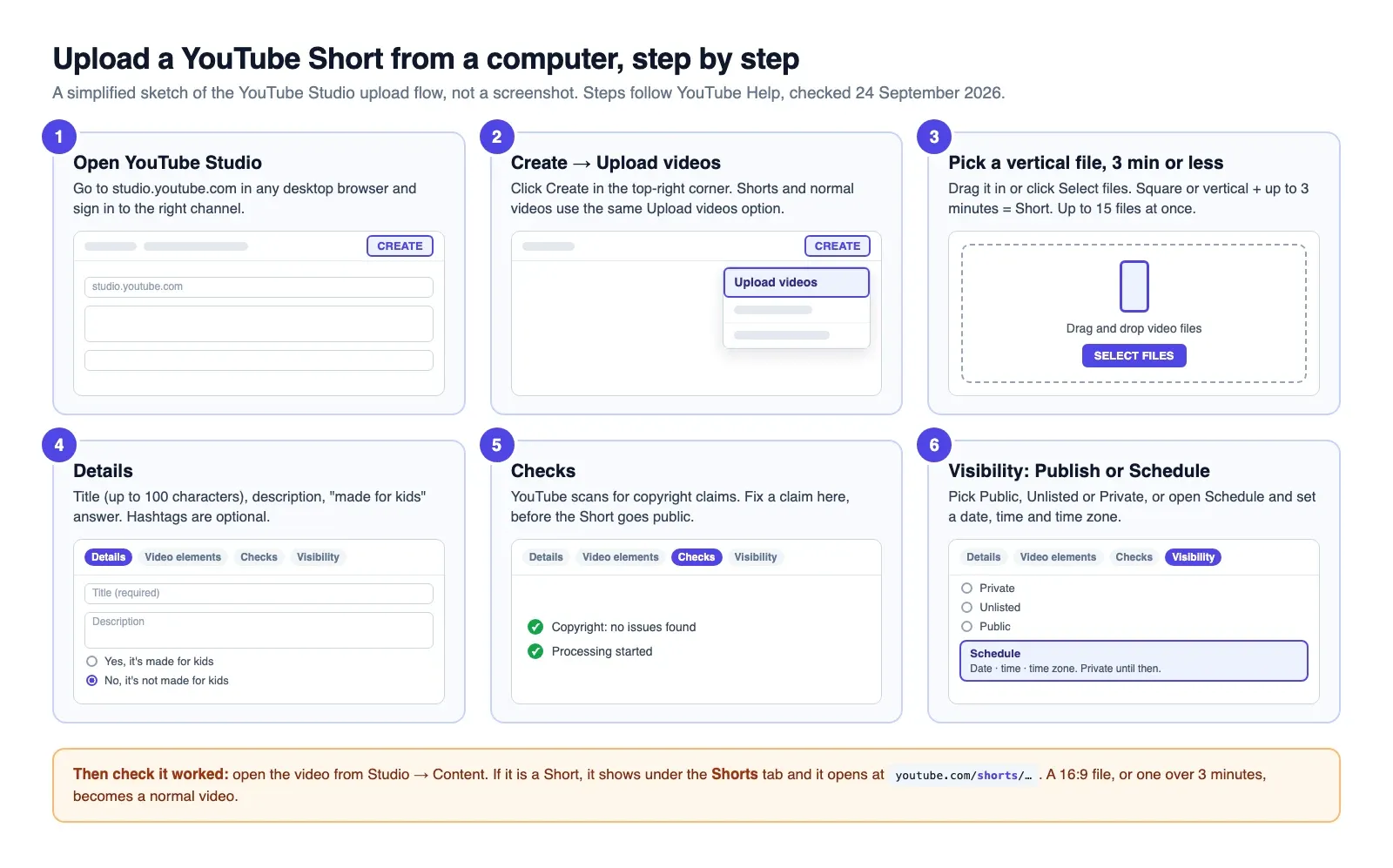
The sketch above is a simplified drawing of the flow, not a screenshot. Here are the same steps in full.
- Open YouTube Studio. Go to studio.youtube.com in Chrome, Edge, Safari or Firefox. Check the channel name in the top-right corner if you manage more than one channel.
- Click Create → Upload videos. The Create button is in the top-right corner. Shorts and normal videos use the same upload option.
- Select your file. Drag it into the window or click Select files. It must be square or vertical and up to 3 minutes long (YouTube Help). The upload starts as soon as you pick the file, so you can fill in the details while it runs.
- Fill in Details. Add a title (up to 100 characters) and a description. Then answer the required question: "Is this video made for kids?" Playlists, tags and the other settings are further down the same page.
- Go through Video elements and Checks. Click Next. The Checks step scans for copyright problems. If it finds a claim, fix it here, before the Short goes public.
- Choose Visibility. Pick Public, Unlisted or Private, then click Publish or Save. To publish later, open Schedule instead (see below).
If you close the upload window before you choose a visibility setting, YouTube saves the video as private in your Content page (YouTube Help). Nothing is lost. Open it from Content and finish the steps.
Prefer to watch? YouTube's own Shorts upload page links to the YouTube Shorts video from the YouTube Creators channel. For a screen-by-screen walkthrough of the desktop upload, Kevin Stratvert's "How to Upload Shorts on YouTube from PC" (October 2024) is the most-watched one. Menu labels may have moved slightly since then.
#What makes a desktop upload count as a Short
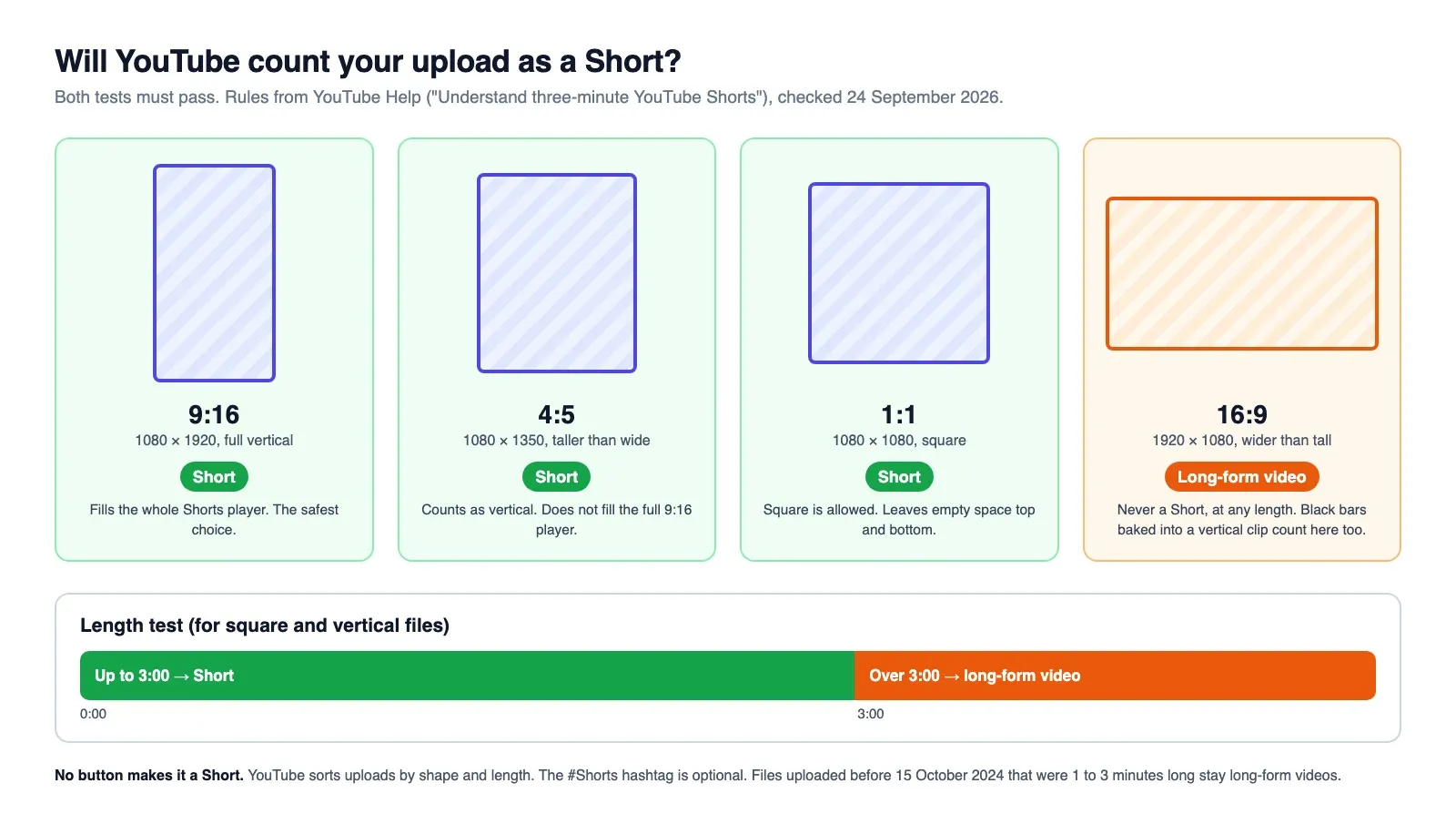
There is no "Short" toggle on a computer. YouTube looks at two things in the file and decides for you.
| Your file | Length | What YouTube makes it |
|---|---|---|
| Vertical (9:16, 4:5 and so on) | Up to 3:00 | Short |
| Square (1:1) | Up to 3:00 | Short |
| Vertical or square | Over 3:00 | Long-form video |
| Horizontal (16:9) | Any length | Long-form video |
| Vertical, 1 to 3 minutes, uploaded before 15 Oct 2024 | 1:00 to 3:00 | Stays a long-form video |
YouTube's rule, word for word: "Any videos uploaded on or after this date with a square or vertical aspect ratio up to three minutes in length will be categorized as Shorts on YouTube" (YouTube Help). The date is 15 October 2024 for standard channels and 8 December 2025 for Official Artist Channels.
It also works the other way. If you do not want a vertical clip to become a Short, YouTube's advice is to "use a wider aspect ratio such as 16:9" (same page).
For the best result, export at 1080 × 1920 (9:16). That fills the whole Shorts player. The full size table is in our YouTube Shorts dimensions guide, and the length rules, including the 60-second history, are in YouTube Shorts length.
#What about the #Shorts hashtag?
Many guides still tell you to add #Shorts to the title or description. YouTube's current Shorts pages don't mention it. The upload page lists only two conditions: the length and the aspect ratio.
So #Shorts is now just a normal hashtag. It links to a hashtag results page, and it does no harm. It will not turn a 16:9 video into a Short, and leaving it out will not stop a vertical clip from becoming one. One rule to know: if a video has more than 60 hashtags, YouTube ignores all of them (YouTube Help).
#Upload several Shorts at once
YouTube Studio takes up to 15 files in one upload (YouTube Help). This is the biggest reason to upload from a computer: it is much faster than posting one clip at a time from a phone. It fits a batch routine like the one in our YouTube content calendar template.
- In Create → Upload videos, select up to 15 files at once (Ctrl-click on Windows, Cmd-click on Mac).
- Studio uploads all of them and opens a list.
- Click Edit draft next to each one. Add the title, description and "made for kids" answer, and set visibility or a schedule.
- Files you don't finish stay as private drafts in Content.
There is also a daily upload limit per channel. YouTube does not publish the number. It says the limit may "vary by country/region or channel history" and applies across desktop, mobile and the API. If you hit it, you will see "Daily upload limit reached". Try again after 24 hours (YouTube Help).
#How to schedule a Short from your computer
Scheduling is part of the same upload flow (YouTube Help):
- Upload the file and fill in the details as above.
- On the Visibility step, click the Schedule card.
- Set the date, time and time zone.
- Click Schedule.
The Short sits as private until that moment, then goes public. To change the time later, go to Content, make sure the visibility is Private, click Edit draft and pick a new time.
Two details that catch people out:
- The "Published on" date uses Pacific Time. If you are ahead of Pacific Time, the date under your Short can differ from the one Studio shows.
- Strikes freeze schedules. If your channel gets a Community Guidelines strike, scheduled videos don't publish during the penalty period. You have to reschedule them afterwards.
For picking the slot itself, see the best time to post YouTube Shorts. For the full comparison of YouTube's scheduler and third-party tools, read our guide to scheduling YouTube Shorts.
#Title, description and visibility settings
| Setting | Rule | Tip |
|---|---|---|
| Title | Max 100 characters | Put the key words first. Long titles get cut off in the Shorts player. |
| Description | Max 5,000 characters | Up to 3 of its hashtags can show next to the title |
| Made for kids | Required answer | YouTube requires it. Answer it honestly. |
| Visibility | Public, Unlisted, Private or Schedule | Upload one Unlisted test first if you are new |
| Default privacy | Public for 18+, Private for ages 13–17 | From YouTube Help |
YouTube's own tip for first-timers: "Try uploading a test Short to get comfortable with the steps" (Shorts upload tips). An Unlisted test is the safe way to do it. You can check that it became a Short before anyone sees it.
#Thumbnails for Shorts: a desktop-only feature now
Many guides still say you can't set a custom Short thumbnail from a PC. That is now backwards. YouTube's thumbnail page says: "Custom thumbnails for Shorts are currently only available to add in YouTube Studio on a computer. Your account must be verified to use this feature" (YouTube Help).
How to add one:
- In YouTube Studio, open Content and click the Shorts tab at the top.
- Click the edit (Details) icon on the Short.
- Under Thumbnail, click Upload file, then Save.
| Thumbnail spec | Shorts | Normal videos |
|---|---|---|
| Aspect ratio | 9:16 | 16:9 |
| Recommended size | 2160 × 3840 | 3840 × 2160 |
| Minimum | 640 px tall | 640 px wide |
| Max file size (desktop) | 50 MB | 50 MB |
| Formats | JPG, PNG | JPG, PNG |
If you haven't verified your account, go to youtube.com/verify first. It takes a phone number and a code.
#Music and sounds: desktop vs the phone app
This is the one area where the phone app still does more.
| Feature | YouTube Studio (computer) | YouTube app (phone) |
|---|---|---|
| Upload a finished vertical file | Yes | Yes |
| Shorts Audio Library (licensed songs) | Not documented for desktop uploads | Yes, in the Shorts editor |
| YouTube Audio Library (royalty-free) | Yes, download it and add it in your editor | Yes |
| Text, filters, effects | Add them in your editor first | Yes, built in |
| Custom Shorts thumbnail | Yes (verified accounts) | No |
| Upload up to 15 at once | Yes | No |
From a computer, the simple route is to add music in your editor before you export. On longer Shorts, most licensed songs stop at 90 seconds anyway, as the Shorts music and length limits explain. Use tracks from the royalty-free YouTube Audio Library (YouTube Studio → Audio Library). YouTube says those tracks "won't receive a copyright claim" (YouTube Help).
If you add a commercial song yourself, the Checks step may flag a Content ID claim. Until 23 September 2026, a Short over one minute with an active claim was blocked. From 24 September 2026, those Shorts are "no longer automatically blocked and may remain playable" (same page). The claim itself still stands. You can remove the claimed audio or file a dispute.
#Mac, Windows and Chromebook notes
The upload is the same everywhere. What changes is how the file gets onto your computer.
- Windows: export a 9:16 project from your editor as MP4 (H.264 video, AAC audio). YouTube's recommended encoding is MP4 with H.264.
- Mac: iPhone clips sent over AirDrop arrive as .MOV files, often in HEVC. Both .MOV and HEVC are on YouTube's supported formats list, so you can upload them as they are. If you export from QuickTime and get "Failed (empty .mov file)", save the movie as self-contained and try again.
- Chromebook: use YouTube Studio in Chrome. Your Google Drive shows up in the Files app, so you can pick a clip straight from Drive in the upload window.
The file can be up to 256 GB. That limit is far above anything a 3-minute Short needs (YouTube Help).
#How to check it became a Short
Do these checks right after the upload, while it is still private or unlisted:
- Content → Shorts tab. In YouTube Studio, Shorts have their own tab at the top of the Content page. If your upload is under Videos instead, it is a long-form video.
- The link. Open the video on YouTube. A Short usually opens in the vertical Shorts player at
youtube.com/shorts/.... - Your phone. Open your channel in the YouTube app and look under the Shorts tab.
#Common problems and fixes
| Problem | Likely cause | Fix |
|---|---|---|
| My Short uploaded as a normal video | File is over 3:00, or it is wider than square | Trim to 3:00 or less. Export at 9:16. Re-upload. |
| Vertical clip still became a normal video | Black bars were baked in, so the file is really 16:9 | Export the project itself at 1080 × 1920, not a vertical clip placed on a 16:9 canvas |
| An old 2-minute vertical upload isn't a Short | Uploaded before 15 Oct 2024 | Those stay long-form. Re-upload if you want it in the Shorts feed. |
| Can't find a Shorts button on desktop | There isn't one | Use Create → Upload videos. The file's shape decides. |
| "Is it better to upload Shorts from PC or phone?" | No ranking difference is documented | Use the PC for batches and thumbnails, the phone for licensed sounds |
| Error with a song from the Shorts Audio Library | Some labels allow personal, non-commercial use only | Re-upload without that track, or use YouTube Audio Library music |
| "The server has rejected the file" | Unsupported format | Convert to MP4 (H.264) and re-upload |
| "Daily upload limit reached" | Channel's 24-hour cap | Wait 24 hours. Use scheduling to spread uploads out. |
| Scheduled Short never went public | Community Guidelines strike froze it | Reschedule after the penalty period ends |
| Can't add a custom thumbnail | Account not verified | Verify at youtube.com/verify, then use Content → Shorts |
The error messages and fixes in this table come from YouTube's common uploading errors page, apart from the classification rows, which come from the three-minute Shorts page linked above.
#A pre-upload checklist
- File is 9:16, ideally 1080 × 1920, with no black bars baked in
- Length is 3:00 or less (check the exact seconds, not the rounded number)
- Music is either royalty-free or cleared for your use
- Title is written, with the key words at the start
- "Made for kids" answered
- Visibility chosen, or a schedule set in your audience's time zone
- Custom 9:16 thumbnail ready (verified accounts)
- Checked under Content → Shorts after upload
#Uploading Shorts with Schedule & Chill
Schedule & Chill is a scheduler for posting to several platforms from one place, or from an AI assistant like Claude through our MCP server. YouTube is one of the platforms you can connect today, along with LinkedIn, Bluesky and Mastodon. It is free right now: 2 social accounts, 500 posts a month and uploads up to 400 MB.
For YouTube, you set the title, description, privacy (public, unlisted or private), category and the "made for kids" answer. We upload your file as it is, so YouTube classifies it with the same rules as a Studio upload. A 9:16 file of 3 minutes or less becomes a Short. We do not set custom thumbnails, so add one in Studio afterwards if you need it. Unlike Studio's scheduler, we hold the post and upload it at the scheduled time. It does not sit on YouTube as a private video until then. More detail is in our YouTube video scheduler guide.
If you only post to YouTube, Studio's own scheduler is free and works well. A separate tool helps when the same clip also goes to LinkedIn or Mastodon. For LinkedIn, see LinkedIn's video posting steps.
#Keep reading
- Every way to schedule a Short, compared — desktop, phone and API tools, plus what goes wrong.
- The hour to pick when you schedule — what five studies say and how to read your own audience chart.
- Shorts vs TikTok for the same upload — one clean export, two platforms, and which one to lead with.
- Uploading to TikTok from a computer too — TikTok's web upload limits and safe zone for the same file.
- Schedulers that upload to YouTube for you — seven tools priced, and the audit that decides if uploads come out private.
#Frequently Asked Questions
Can I post YouTube Shorts on a PC? Yes. Open YouTube Studio in a desktop browser, click Create → Upload videos, and pick a square or vertical video up to 3 minutes long. YouTube makes it a Short on its own. This works on Windows, Mac and Chromebook.
Why is my Short uploading as a normal video? Almost always because the file breaks one of the two rules: it is longer than 3 minutes, or it is wider than it is tall. A common hidden cause is a vertical clip exported on a 16:9 canvas with black bars. Export at 1080 × 1920 and upload again. Videos uploaded before 15 October 2024 that were 1 to 3 minutes long also stay long-form.
Do I need to add #Shorts to the title?
No. YouTube's current upload page lists only the aspect ratio and the length as conditions. #Shorts works as a normal hashtag, so adding it is harmless, but it does not decide whether a video is a Short.
Is it better to upload Shorts from PC or phone? YouTube has not said that one ranks better. A PC is better for uploading up to 15 clips at once and for custom Shorts thumbnails, which are desktop-only now. The phone app is better for adding licensed songs from the Shorts sound library and for built-in effects.
Can I schedule YouTube Shorts from my computer? Yes. On the Visibility step of the upload, open Schedule and pick the date, time and time zone. The Short stays private until then. You can change the time later from Content → Edit draft while it is still private.
Why can't I upload YouTube Shorts at all? Check the error message. "Daily upload limit reached" means wait 24 hours. "Can't upload. Your channel status or account settings currently do not support uploads" usually means a Community Guidelines strike or a restricted Google Workspace account. "The server has rejected the file" means the format isn't supported, so convert to MP4 and try again.