

YouTube Shorts Dimensions: Size, Specs and Safe Zone
The right YouTube Shorts dimensions are 1080 × 1920 pixels at a 9:16 aspect ratio, exported as an H.264 MP4. That fills the whole phone screen. YouTube treats any upload that is square or vertical and 3 minutes or shorter as a Short, and its help page says Shorts have "a maximum resolution of 1080p".
Most guides stop at the pixel size. This one also covers what YouTube does with other shapes, the real thumbnail size for Shorts (it is not 1280 × 720), and where the buttons sit on top of your video. Every spec was checked against YouTube's own help pages on 24 September 2026. When the file is ready, our Shorts scheduling guide picks up from upload to publish.
#Quick answer
- Dimensions: 1080 × 1920 px. YouTube says Shorts play at a maximum of 1080p.
- Aspect ratio: 9:16 is best. Any square or vertical ratio counts as a Short. 16:9 never does.
- Length: up to 3 minutes.
- Format: MP4 with H.264 video and AAC audio.
- Bitrate: 8 Mbps at 24 to 30 fps, 12 Mbps at 48 to 60 fps (YouTube's own numbers for 1080p).
- Max file size: 256 GB, the limit for every YouTube upload. A normal Short is under 300 MB.
- Thumbnail: 9:16, ideally 2160 × 3840 px. Custom images only in YouTube Studio on a computer, verified accounts only.
- Safe zone (approximate): keep text and faces 200 px from the top, 420 px from the bottom and 160 px from the right edge.
#YouTube Shorts dimensions and specs at a glance
| Spec | Value | Source |
|---|---|---|
| Recommended size | 1080 × 1920 px | Full HD turned upright; matches the 1080p cap below |
| Maximum resolution | 1080p | YouTube Help: Create YouTube Shorts |
| Aspect ratio | Square or vertical; 9:16 fills the screen | YouTube Help: Upload YouTube Shorts |
| Max length | 3 minutes | YouTube Help: Understand three-minute Shorts |
| Container and codecs | MP4, H.264 video, AAC-LC or Opus audio | YouTube Help: Recommended upload encoding settings |
| Frame rate | Upload at the rate you recorded; 24, 25, 30, 48, 50 and 60 are common | Recommended upload encoding settings |
| Video bitrate (1080p, SDR) | 8 Mbps at 24 to 30 fps, 12 Mbps at 48 to 60 fps | Recommended upload encoding settings |
| Audio | 48 kHz, stereo, 384 kbps recommended | Recommended upload encoding settings |
| Max file size | 256 GB or 12 hours, whichever is less | YouTube Help: Upload videos longer than 15 minutes |
| Title | Up to 100 characters | YouTube Help: Create YouTube Shorts |
A note on 1080 × 1920. YouTube does not publish a "recommended" pixel size for Shorts. It publishes the shape (square or vertical) and a ceiling (1080p). 1080 × 1920 is the biggest 9:16 frame at 1080p, and every phone and editor exports it. That is why it is the right answer.
A note on 4K. The 1080p line sits in YouTube's guide to making Shorts, and YouTube re-encodes everything you upload anyway. You can upload a 2160 × 3840 file and it will be accepted. It will just take longer to upload and process, and viewers will not see four times the detail. Export at 1080 × 1920 unless you have a reason not to.
#Which shapes become a Short (and what happens to 16:9)
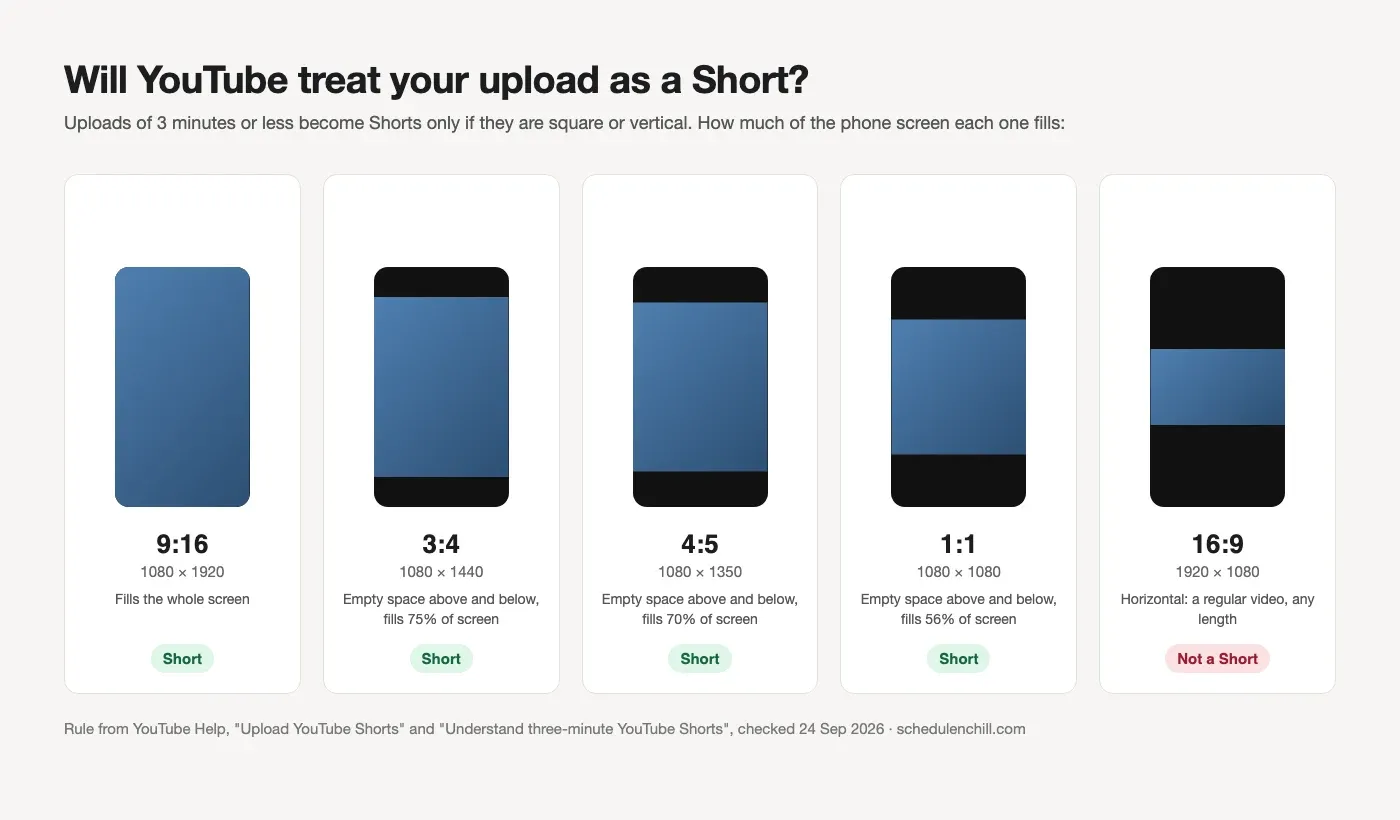
YouTube does not have a "Short" checkbox. It decides from two things: the shape and the length. Since 15 October 2024, "any videos uploaded on or after this date with a square or vertical aspect ratio up to three minutes in length will be categorized as Shorts" (YouTube Help).
| Your file | Length | Result on YouTube | How it looks in the Shorts feed |
|---|---|---|---|
| 9:16 (1080 × 1920) | 3 min or less | Short | Fills the screen |
| 3:4 or 4:5 | 3 min or less | Short | Fills 70 to 75% of the screen height |
| 1:1 (1080 × 1080) | 3 min or less | Short | Fills 56% of the screen height |
| 16:9 (1920 × 1080) | Any | Regular video | Not in the Shorts feed |
| Any shape | Over 3 min | Regular video | Not in the Shorts feed |
So "is 1920 × 1080 good for YouTube Shorts?" has a short answer: no. A horizontal file is a regular video, whatever its length. To turn it into a Short you have to reframe it to vertical first. The ffmpeg command further down does that in one line.
Also avoid adding black bars inside the file to fake a vertical frame. YouTube says padding "interferes with YouTube's ability to change the player dynamically to your video size" (YouTube Help: Video resolution and aspect ratios). Crop or reframe instead.
For every length rule, including what happens with music after one minute, see YouTube Shorts length.
#The YouTube Shorts safe zone, in pixels
YouTube puts its interface on top of your Short. The search and menu icons sit at the top. The like, comment and share buttons sit on the right. Your channel name, the Subscribe button, the title and the sound sit at the bottom. Anything under them is hard to see.
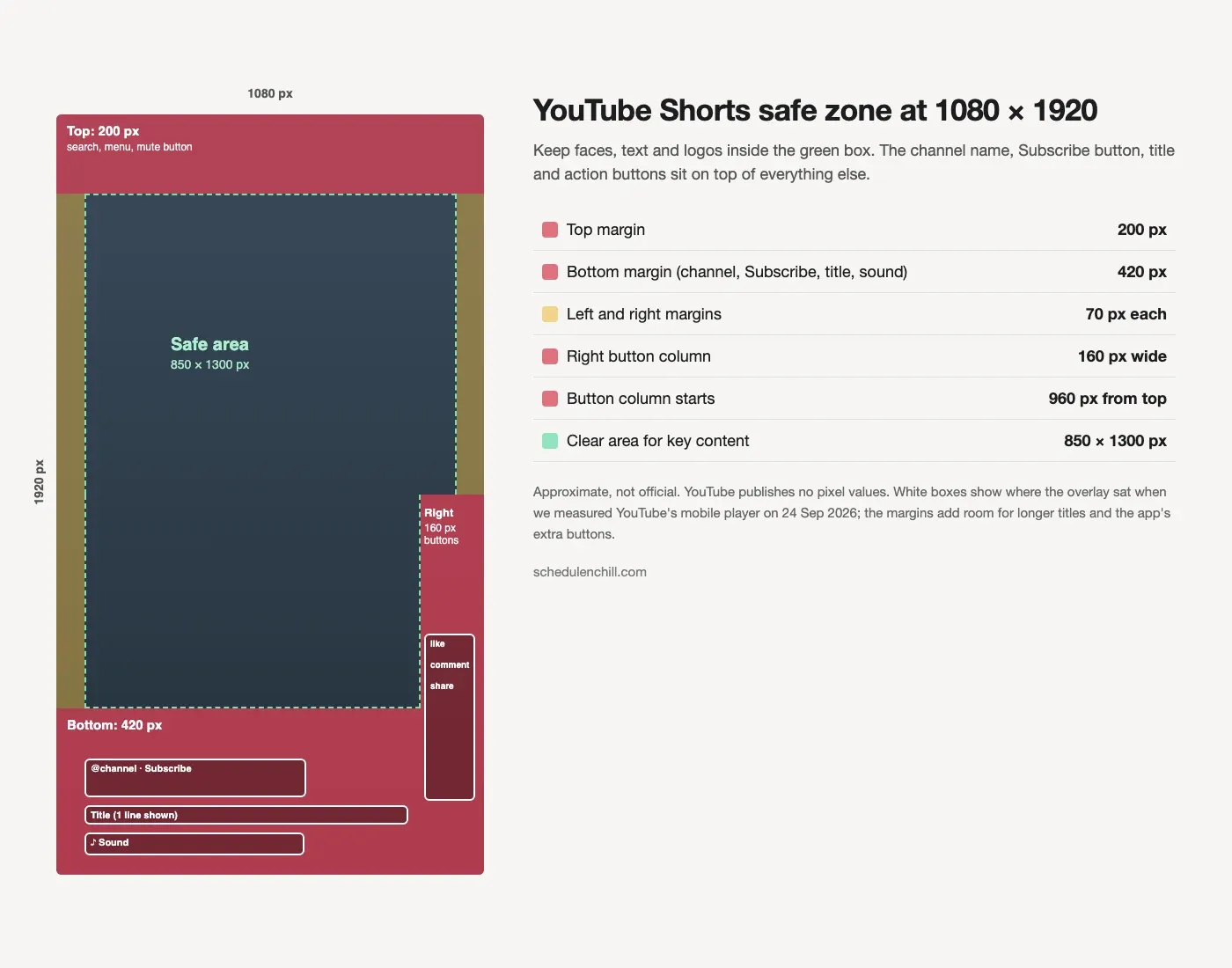
These numbers are approximate, not official. YouTube does not publish pixel margins for organic Shorts. Its Shorts editor shows "visual guides" when you drag text near a button, and white lines when text is too close to the edge (YouTube Help: Enhance your Shorts). Those guides show on screen but have no numbers.
So we measured. On 24 September 2026 we loaded Shorts in YouTube's mobile player on a 412-px-wide phone screen, read the position of each overlay, and scaled it to a 1080 × 1920 frame. Then we added room for longer titles and for the extra buttons the YouTube app shows.
| Zone | What we measured | What we recommend |
|---|---|---|
| Top bar (search, menu, mute) | About 120 px | Keep 200 px clear |
| Channel name and Subscribe button | Starts about 290 px above the bottom edge | Part of the bottom margin |
| Title, one line, and sound name | Between the Subscribe row and the bottom edge | Keep 420 px clear at the bottom |
| Left edge | Overlay text starts about 70 px in | 70 px |
| Right button column | About 150 px wide, starting about 610 px above the bottom | 160 px wide, from 960 px down |
| Clear area | 850 × 1300 px |
How to use it:
- Put on-screen text, faces and logos inside the clear area.
- Keep the right edge clear from the middle of the frame down. The YouTube app shows more buttons there (dislike, remix and the sound disc) than the mobile web player.
- Keep calls to action out of the bottom 420 px. A two-line title or a product tag pushes the overlay higher.
- Backgrounds can run edge to edge. Only the important parts need to sit inside the box.
The Shorts margins are smaller than TikTok's. TikTok's own template needs 660 px at the bottom (see our TikTok video size guide). If you post the same video to both, design for the TikTok safe zone and it will be safe on Shorts too.
#Shorts thumbnail size
This is where the top search results are most often wrong. Many say a Shorts thumbnail is 1280 × 720. That is the size for regular videos. For Shorts, YouTube recommends a vertical image.
| Thumbnail spec | Shorts | Source |
|---|---|---|
| Aspect ratio | 9:16 | YouTube Help: Add custom thumbnails |
| Recommended size | 2160 × 3840 px | Add custom thumbnails |
| Minimum | 640 px tall | Add custom thumbnails |
| Formats | JPG or PNG | Add custom thumbnails |
| Max file size | 50 MB on desktop | Add custom thumbnails |
| Who can upload one | Verified accounts only | Add custom thumbnails |
| Where | YouTube Studio on a computer only | Add custom thumbnails |
There are two ways to set the cover of a Short:
- Pick a frame (phone). In the YouTube app, tap Edit on the thumbnail on the final upload screen, pick a frame, and add text if you like. You can change it later from Your videos (YouTube Help: Create YouTube Shorts).
- Upload your own image (computer). In YouTube Studio, open Content → Shorts, click the pencil on your Short, and under Thumbnail click Upload file. Your account must be verified at youtube.com/verify first.
One trap: if you give a vertical video a 16:9 custom thumbnail, YouTube replaces it with "an auto-generated 4:5 thumbnail on the home, explore, and subscription pages" (YouTube Help). Make Shorts thumbnails 9:16 and keep the text in the centre, because feeds crop the edges.
For the full desktop flow, see how to upload YouTube Shorts from a PC.
#Export settings cheat sheet
Use these settings for every Short. They follow YouTube's own encoding page and stay far below every limit.
| Setting | Value |
|---|---|
| Resolution | 1080 × 1920 |
| Frame rate | The rate you shot at. 30 fps, or 60 fps for fast motion |
| Container | MP4 |
| Video codec | H.264, High profile |
| Bitrate | 8 Mbps at 30 fps, 12 Mbps at 60 fps |
| Audio | AAC, 48 kHz, stereo |
| Colour | SDR, Rec. 709 |
What that means for file size: a full 3-minute Short at 8 Mbps is about 185 MB. At 12 Mbps it is about 275 MB. A 30-second Short is under 50 MB. File size matters again if you post through a third-party YouTube scheduler, because some tools set their own upload caps.
Per app:
| App | Where to set it |
|---|---|
| CapCut | Start a 9:16 project. On Export, set Resolution 1080p, Frame rate 30 (or 60), Codec H.264, Format MP4, Bitrate Recommended. |
| Premiere Pro | Use a 1080 × 1920 vertical sequence. File → Export → Media: Format H.264, frame size Match Source, Bitrate VBR 1 pass, target 8 Mbps (12 for 60 fps), audio AAC 48 kHz. |
| DaVinci Resolve | Set Project Settings → Timeline resolution to 1080 × 1920. On the Deliver page choose Custom Export, Format MP4, Codec H.264, Quality Restrict to 8000 Kb/s. |
| iPhone camera | Settings → Camera → Record Video → 1080p at 30 fps. Under Settings → Camera → Formats, Most Compatible records H.264. Turn off HDR Video if uploads look washed out. |
| Android camera | In the camera settings, choose FHD 1080p and the 9:16 or full-screen frame. Menu names vary by phone brand. |
| YouTube app | Record with the Shorts camera. It handles the size for you. |
YouTube also asks you to keep the original frame rate. Do not turn 24 fps footage into 60 fps. It will look jerky, not smoother.
#Common errors and fixes
| Problem | Likely cause | Fix |
|---|---|---|
| Uploaded as a regular video, not a Short | File is horizontal, or longer than 3 minutes | Reframe to 9:16 and trim to 3 minutes. Then upload again. |
| Black or empty space above and below | File is 1:1, 4:5 or 3:4 | Reframe to 9:16 in your editor, or crop with the command below. |
| Text hidden behind buttons or title | Text sits outside the safe zone | Move it inside the 850 × 1300 clear area. |
| Blurry right after upload | HD versions are still processing | Wait. YouTube says HD and 4K take more time to process. |
| Still blurry later | Low source resolution or bitrate | Export at 1080 × 1920 and 8 Mbps or more. |
| Washed-out colours | HDR footage shown as SDR | Turn off HDR recording, or export SDR (Rec. 709). |
| No option to upload a custom thumbnail | Account not verified, or you are on a phone | Verify at youtube.com/verify, then use YouTube Studio on a computer. |
| Custom thumbnail not showing on the home feed | You used a 16:9 image | Upload a 9:16 thumbnail. |
| "Daily custom thumbnail limit reached" | YouTube caps thumbnail uploads per day | Try again in 24 hours. |
| Sound out of sync | Variable frame rate from a phone | Re-export at a fixed frame rate (the command below does this). |
#Fix it with ffmpeg
If you have ffmpeg installed, one command turns any clip into a file YouTube will treat as a Short. This version fills the whole screen. It crops the sides of a landscape clip, so keep your subject in the centre:
 1ffmpeg -i input.mov -t 179 \
 2  -vf "scale=1080:1920:force_original_aspect_ratio=increase,crop=1080:1920,setsar=1" \
 3  -r 30 -c:v libx264 -profile:v high -preset slow -crf 20 -pix_fmt yuv420p \
 4  -c:a aac -ar 48000 -b:a 192k -movflags +faststart \
 5  short.mp4
This version keeps the whole picture and fills the rest of the 9:16 frame with black:
 1ffmpeg -i input.mov -t 179 \
 2  -vf "scale=1080:1920:force_original_aspect_ratio=decrease,pad=1080:1920:(ow-iw)/2:(oh-ih)/2,setsar=1" \
 3  -r 30 -c:v libx264 -profile:v high -preset slow -crf 20 -pix_fmt yuv420p \
 4  -c:a aac -ar 48000 -b:a 192k -movflags +faststart \
 5  short.mp4
What the settings do: -t 179 stops the file one second under the 3-minute limit. -crf 20 keeps quality high at a sensible size. -r 30 fixes the frame rate, which cures most sync problems (use -r 60 if you shot at 60). -movflags +faststart puts the index at the front of the file, which YouTube's encoding page asks for.
Use the second version only when cropping would cut off something important. YouTube prefers files without bars, so the first version is the better default.
#YouTube Shorts vs TikTok vs Instagram Reels specs
The same 1080 × 1920 file works on all three, so you can export once and post three times. The limits around it differ, and so do the best posting hours: compare the best hours for YouTube Shorts with the TikTok posting-time data.
| Spec | YouTube Shorts | TikTok | Instagram Reels |
|---|---|---|---|
| Best frame | 1080 × 1920, 9:16 | 1080 × 1920, 9:16 | 1080 × 1920, 9:16 |
| Shapes allowed | Square or vertical | Any; non-9:16 gets bars | 1.91:1 to 9:16 |
| Minimum resolution | Not published | 720 × 1280 on the web | 720 px |
| Max length | 3 minutes | 30 min on the web, 3 to 10 min by API | 20 minutes (over 3 min not shown to new audiences) |
| Max file size | 256 GB | Under 10 GB on the web, 4 GB by API | Not published on the Reels help page |
| Frame rate | Recorded rate, 24 to 60 fps | 23 to 60 fps (API) | 30 fps minimum |
| Cover | Pick a frame in the app, or 9:16 image in Studio | Any frame | 420 × 654 px; can't change after upload |
| Bottom safe margin | About 420 px (our measurement) | 660 px (TikTok template) | Not covered here |
Sources: YouTube Help pages linked above; TikTok figures from our TikTok video size guide; Instagram from Reel size and aspect ratios and Record a reel on the Instagram Help Center. For how the two biggest platforms differ beyond specs, read YouTube Shorts vs TikTok.
#Scheduling your Shorts
Getting the size right is one step. Posting on a steady schedule is the next. Our guide to scheduling YouTube Shorts covers YouTube Studio's own scheduler and the other options.
Schedule & Chill is a free scheduler that posts to YouTube, LinkedIn, Bluesky and Mastodon. The free plan includes 2 accounts, 500 posts a month and uploads up to 400 MB. A full 3-minute Short exported with the settings above is about 185 to 275 MB, so it fits. For YouTube you set the title, description, privacy, category and the "made for kids" answer. We upload your file as it is, so YouTube uses the same shape-and-length rule as a Studio upload: a vertical file of 3 minutes or less becomes a Short. We do not set custom thumbnails, so add a 9:16 one in YouTube Studio after it posts.
#Keep reading
- The step-by-step Shorts scheduling guide — Studio, the phone app and third-party tools in one place.
- YouTube Shorts max length and music limits — the other half of what makes a file a Short.
- Uploading a vertical file from your computer — where the 9:16 thumbnail and batch upload live.
- A monthly YouTube calendar for videos and Shorts — plan which Short points to which long video.
- Shorts or TikTok: where one vertical file does more — audience, engagement and pay compared, not just specs.
#Frequently Asked Questions
What are the dimensions of a YouTube Short? 1080 × 1920 pixels at a 9:16 aspect ratio. YouTube says Shorts have a maximum resolution of 1080p, so that is the largest size that fills the screen. Export it as an MP4 with H.264 video and AAC audio.
Are YouTube Shorts 9:16? Yes, 9:16 is the shape that fills the phone screen. YouTube also counts square and other vertical shapes, such as 4:5 and 3:4, as Shorts if they are 3 minutes or shorter. Those play with empty space above and below.
Is 1920 × 1080 good for YouTube Shorts? No. 1920 × 1080 is horizontal (16:9), and YouTube treats horizontal uploads as regular videos, whatever their length. Turn the frame upright to 1080 × 1920, or crop it with the ffmpeg command above.
Is 3:4 OK for YouTube Shorts? It works. A 3:4 video of 3 minutes or less is vertical, so YouTube treats it as a Short. It fills about 75% of the screen height and leaves empty space above and below. Reframe to 9:16 if you want the full screen.
What size is a YouTube Shorts thumbnail? 9:16, ideally 2160 × 3840 pixels, and at least 640 pixels tall, as a JPG or PNG. Custom Shorts thumbnails can only be uploaded in YouTube Studio on a computer, from a verified account. On a phone you can pick a frame from the video instead.
Can I upload a 4K YouTube Short? YouTube will accept the file, but its help page says Shorts have a maximum resolution of 1080p. A 4K file takes longer to upload and process for no visible gain on a phone. Export at 1080 × 1920.