

Yes, you can schedule posts on LinkedIn. The scheduler is built in and free. You write a post, click the clock icon in the post window, and pick a date and time. On a personal profile, the time can be 10 minutes to 3 months ahead. On a Company Page, it can be 1 hour to 3 months ahead. It works in a desktop browser and in the mobile app.
Below are the steps, what you cannot schedule, what to do when the clock icon is missing, and when LinkedIn's own scheduler is enough. We checked every rule on LinkedIn Help on 7 October 2026.
#Quick answer
- Can you schedule posts on LinkedIn? Yes, for free, with the clock icon in the post window.
- Desktop or mobile? Both. The clock is in the lower-right corner on desktop and the upper-right corner in the app.
- How far ahead? Personal profile: 10 minutes to 3 months. Company Page: 1 hour to 3 months.
- What can't you schedule? Events, jobs and services. A Page also cannot schedule polls, reshares or posts with multiple photos.
- Articles? Yes, on desktop. The clock icon sits next to Publish.
- Clock icon gone? Run the six checks further down this page.
#How far ahead can you schedule a post on LinkedIn?
Personal profiles and Company Pages follow different rules.
| Rule | Personal profile | Company Page |
|---|---|---|
| Earliest time | 10 minutes from now | 1 hour from now |
| Latest time | 3 months from now | 3 months from now |
| Time picker | 30-minute steps, or type an exact time | Same |
| Time zone | Your device's time zone (desktop) or your current location (app) | Your location |
| Who can schedule | You | Super admins and content admins |
| After you schedule | Edit, change the time, or delete | Post now, edit, change the time, or delete |
| Cannot be scheduled | Events, jobs, services | Events, jobs, services, polls, reshares, multiple photos |
Sources: LinkedIn Help pages Schedule posts, Schedule a LinkedIn Page post and Scheduled posts for LinkedIn Pages.
LinkedIn sets the time from your device or your location, not from your audience. If you live in Dhaka and your buyers are in New York, convert the time before you pick it. Our guide on finding your best time to post on LinkedIn shows how to get that hour from your own analytics.
#How to schedule a post on LinkedIn from a desktop
- Click Start a post at the top of your LinkedIn homepage. The Create a post window opens.
- Write your post. Add an image, a video or a document if you want one.
- Click the clock icon in the lower-right corner.
- Pick a date and time. Use the 30-minute options, or type an exact time.
- Click Next. The date and time now show above your post.
- Click Schedule. A confirmation appears in the lower-left corner.
Changed your mind before the last step? Click Edit next to the time, then Clear time. Now the Post button publishes right away.
If the post is long, check it against the LinkedIn post character limit before you schedule it.
#How to schedule a LinkedIn post on the mobile app
- Tap Post in the navigation bar. The Share post screen opens.
- Write your post.
- Tap the clock icon in the upper-right corner.
- Pick a date and time, then tap Next.
- Tap Schedule in the upper-right corner.
To remove the time before you confirm, tap Edit next to the time, then tap Clear.
Video posts use the same steps. Read how to post a video on LinkedIn for the file specs first.
#How to schedule a post on a LinkedIn Company Page
You must be a super admin or a content admin of the Page.
- Open the Page's admin view.
- Click Page posts in the left menu. In the app, tap Dashboard, then Page posts.
- Click Start a post. In the app, tap Post.
- Click the clock icon, pick a date and time, then click Next.
- Finish the post and click Schedule.
Two Page rules that most guides skip:
- Other admins can manage your scheduled posts. They can view, edit, reschedule and delete them. If an admin is removed from the Page, their scheduled posts move to the admin who removed them.
- You cannot boost it before it goes live. LinkedIn Help says you cannot promote a scheduled post with Campaign Manager's Browse existing content option until it is published on your Page.
#What you can and cannot schedule on LinkedIn
LinkedIn's help pages list what is blocked, not what is allowed. For a personal profile, only three types are blocked: events, jobs and services. If you add one, LinkedIn shows an error and asks you to post now or remove it. Pages have six blocked types.
| Post type | Personal profile | Company Page |
|---|---|---|
| Text | Yes | Yes |
| One image | Yes | Yes |
| Multiple images | Yes | No |
| Video | Yes | Yes |
| Document (PDF) | Yes | Yes |
| Poll | Yes | No |
| Article | Yes, desktop only | Yes, desktop only |
| Newsletter edition | Unclear (see below) | Yes |
| Reshare (repost) | Not covered by LinkedIn Help | No |
| Event, job or service | No | No |
Every "Yes" in this table is a type LinkedIn Help does not block. Two independent guides agree. Buffer lists PDF posts as schedulable and blocks polls only for Pages. MagicPost marks PDFs and polls as schedulable on a profile. A PDF is also how a LinkedIn carousel post works, so carousels on a profile schedule like any other post.
Articles are scheduled in the article editor, not the post window. Click Write article, finish it, click Next, then click the clock icon next to Publish (LinkedIn Help). The article editor is not in the mobile app.
Reposts. LinkedIn Help does not say whether a profile can schedule a repost. The easy route is to write a new post with the link and schedule that. Our guide on how to repost on LinkedIn shows the steps.
Comments, including a first comment, have no schedule step on LinkedIn Help's comments page. You add them after the post is live.
#Can you schedule a LinkedIn newsletter?
The sources disagree:
| Source | What it says |
|---|---|
| LinkedIn Help: Scheduled posts for Pages | Page admins can schedule "a post or newsletter article". |
| LinkedIn Help: Write and publish articles | One editor handles articles and newsletter editions. The clock icon next to Publish schedules "your article". |
| LinkedIn Help: Manage a newsletter | The steps for a new edition do not mention a schedule step. |
| BrandGhost, March 2026 | "LinkedIn does not currently offer a native scheduling feature for newsletter editions." |
Our reading: a Page can schedule a newsletter edition. For a personal newsletter, open the editor, click Next, and look for the clock icon next to Publish. If it is not there, publish by hand.
#Where scheduled posts go, and how to edit them
To find your scheduled posts, open Start a post, click the clock icon, then click View all scheduled posts. In the app, tap View all. From that list, the More icon gives you Edit post and Modify schedule, and the delete icon removes the post.
The full walk-through, with the Company Page version, is in how to view and edit scheduled posts on LinkedIn.
#The schedule (clock) icon is missing: what to check
On 22 September 2026, a user on r/LinkedInTips asked whether LinkedIn had removed the "Schedule post" option. The clock icon had "completely disappeared" from their personal post window, but the Post button was still there. LinkedIn has not explained this, and we do not know the cause. Its Schedule posts help page still describes the feature on 7 October 2026.
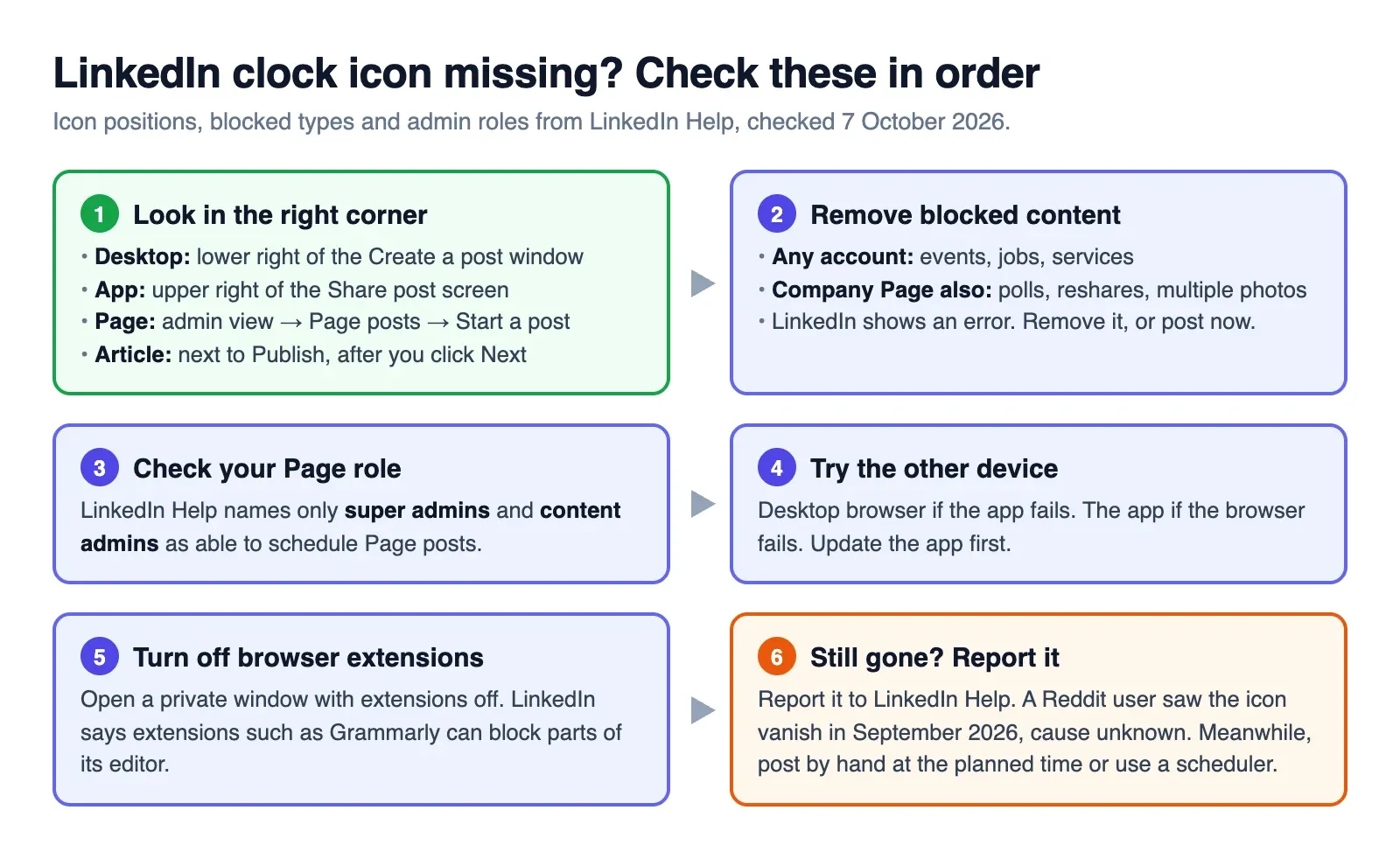
Work through these checks in order:
- Look in the right corner. Desktop: lower right of the Create a post window. App: upper right of the Share post screen. Articles: next to Publish, after you click Next.
- Remove blocked content. An event, job or service blocks scheduling. On a Page, polls, reshares and multiple photos do too.
- Check your Page role. LinkedIn Help names only super admins and content admins as able to schedule Page posts.
- Try the other device. Use a desktop browser if the app fails, and the app if the browser fails. Update the app first.
- Turn off browser extensions. Open a private window with extensions off. LinkedIn's article help page says extensions such as Grammarly can block parts of its editor, so it is a quick test.
- Still gone? Report it to LinkedIn Help. Until it is back, post by hand at the time you planned, or use a third-party scheduler.
#Can you schedule posts on LinkedIn without a tool?
Yes, and often that is enough. LinkedIn's scheduler does one job well: one post, on LinkedIn, at a set time. Here is how it compares with a third-party scheduler.
| What you need | LinkedIn's scheduler | Third-party scheduler |
|---|---|---|
| Price | Free | Free to paid, by tool |
| Scheduling many posts | One post at a time | Many tools offer bulk or CSV import |
| Fixed weekly time slots (a queue) | No | Common |
| Seeing what is queued | A list inside the post window | Usually a calendar |
| Other networks | LinkedIn only | Usually several |
| Polls and articles | Yes (polls on profiles only) | Varies, check each tool |
| Company Pages | Yes | Varies, check each tool |
| Tagging people | Yes, in the post window | Often limited by LinkedIn's API |
| First comment | No | Some tools |
| AI or your own code schedules for you | No | Some tools have an API or MCP server |
#Who should not bother with a tool
Stay with LinkedIn's own scheduler if all of this is true:
- You post to one personal profile.
- You post three times a week or less.
- You use polls, articles or tagging often.
- No one else, and no software, needs to touch your queue.
Not sure how many posts a week to plan? Read how often to post on LinkedIn.
A tool earns its place when you write a week of posts in one sitting, post the same idea to other networks, or want an AI assistant to schedule for you. Either way, plan the week first in a LinkedIn posting calendar.
#Scheduling LinkedIn posts with Schedule & Chill
Schedule & Chill is our product, so read this part with that in mind. It is a free LinkedIn scheduler. A free account connects 2 social accounts and publishes up to 500 posts a month, with uploads up to 400 MB.
What it does on LinkedIn:
- Posts to personal profiles: text, up to 9 images, 1 video, or 1 PDF document of up to 300 pages. Each post can be public or connections-only.
- Drops posts into your next open queue slot, shows them on a calendar, and imports posts from a CSV file.
- Lets AI assistants such as Claude or ChatGPT schedule posts through its MCP server. Your own scripts can use the REST API.
- Also posts to Bluesky, Mastodon, YouTube and TikTok.
What it does not do yet:
- No Company Pages. We are waiting for access to LinkedIn's Community Management API.
- No @mentions or tagging. LinkedIn's API does not give us that access. Add tags in LinkedIn after the post is live.
- No first comment. It is paused until we get the same API access.
- No polls or articles. Use LinkedIn's own scheduler for those.
If you post to one profile a few times a week, use LinkedIn's scheduler instead.
#Frequently Asked Questions
Can you schedule a LinkedIn post on mobile? Yes. In the LinkedIn app, tap Post, write the post, and tap the clock icon in the upper-right corner. Pick a time, tap Next, then tap Schedule. Articles are the exception, because the article editor is not in the mobile app.
How far in advance can you schedule a post on LinkedIn? Up to 3 months. The earliest time is 10 minutes from now on a personal profile and 1 hour from now on a Company Page.
Can you schedule posts on a LinkedIn Company Page? Yes, if you are a super admin or content admin. Go to the Page's admin view, click Page posts, then Start a post, and use the clock icon. Pages cannot schedule events, jobs, services, polls, reshares or posts with multiple photos.
Why can't I see the schedule option on LinkedIn? Check that the post has no event, job or service in it. On a Page, also remove any poll, reshare or extra photos. Then check your Page role, try the other device, and try a browser window with extensions off. A Reddit user reported a missing clock icon in September 2026 with no clear cause. If it stays gone, report it to LinkedIn Help.
Can you schedule a LinkedIn poll or article? A poll, yes, on a personal profile. LinkedIn does not block it there, but a Company Page cannot schedule polls. Articles can be scheduled on desktop with the clock icon next to Publish.
Can I schedule LinkedIn posts for free? Yes. LinkedIn's built-in scheduler costs nothing. It schedules one post at a time, and only to LinkedIn.
